
Room & equipment booking: Rooms, vehicles, and gear—booked in seconds
Easily find and book company assets, all in one place.
Less than 1 minute
Read the video transcript
Need to manage company resources in one central location? InOutBoard Resources fixes that.
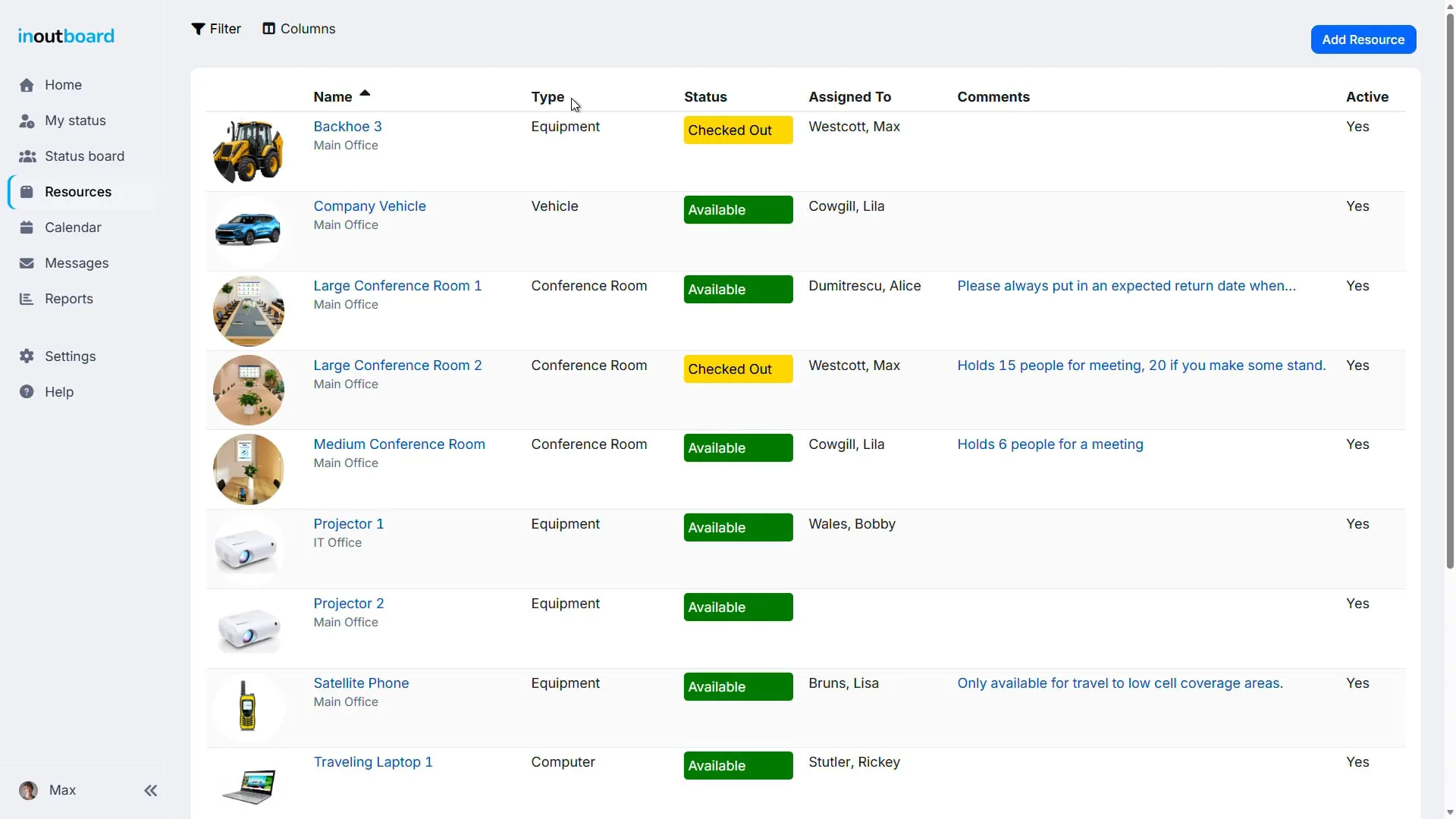
Rooms, vehicles, projectors, laptops—everything your team shares lives in one catalog. Find anything by type, location, status, or who has it.
Every resource shows its current status, who has it, and when it’s due back. No more asking around.
Manage resources by scheduling them for specific times and events. Bookings can be altered or canceled if any plans change.
Thanks for watching. Sign up today and start your 30-day free trial with InOutBoard.
Everything your team shares, in one place
Stop tracking shared equipment in spreadsheets and sticky notes.
-
One list for everything
Add conference rooms, vehicles, projectors, laptops—anything your team shares. Organize by type and location so it's easy to browse.
-
See availability instantly
Every reservation sits on the resource's own schedule, visible to Administrators, Managers, and Employees. A reservation that overlaps one already on the schedule is not allowed, so a room or a vehicle cannot be double-booked.
-
Know who has what
Every reservation shows who has the resource and when it's due back. No more hunting the building for a missing projector.
Check things out from your phone
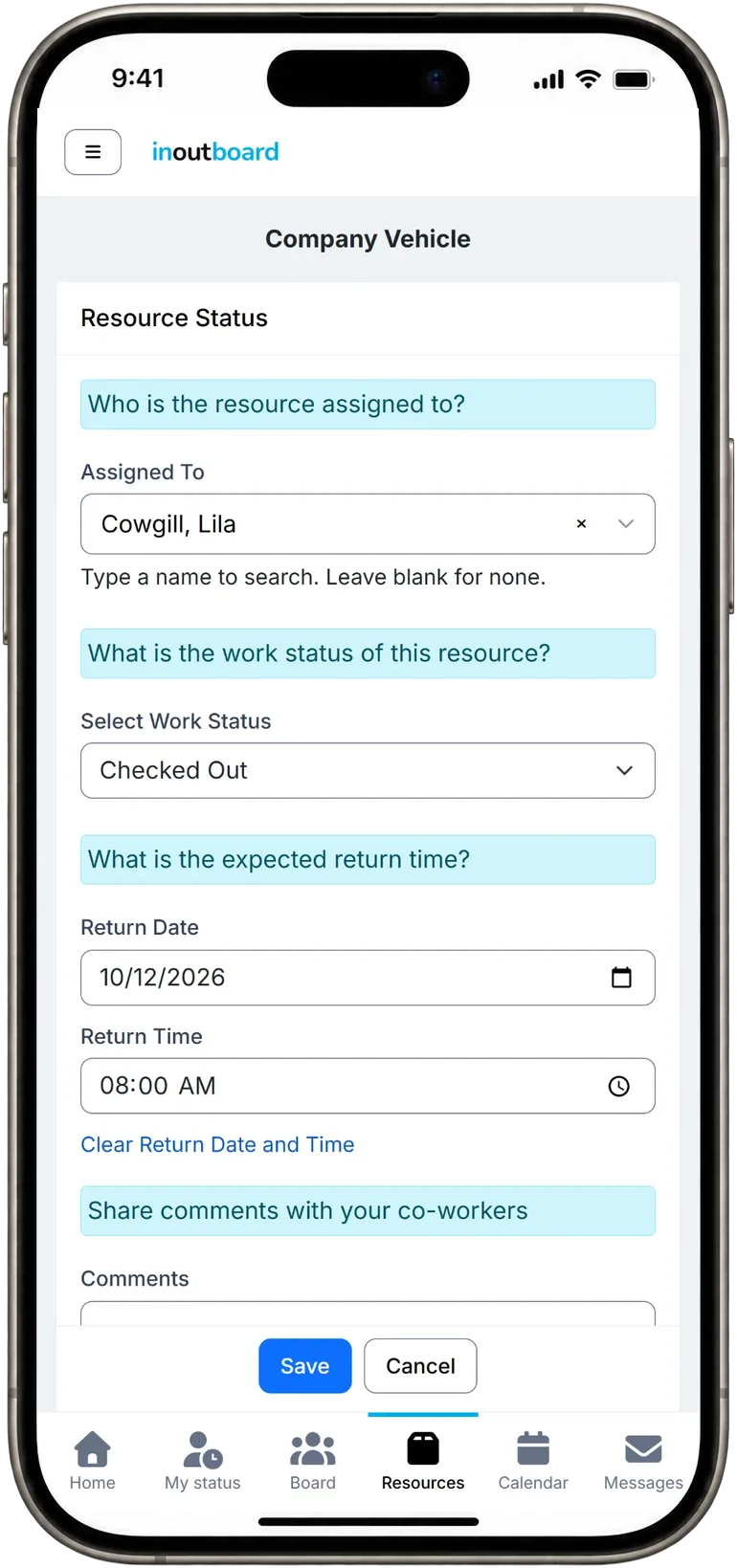
Record who has a resource, its status and when it's due back, right where you're standing.
Right from your phone
Open the menu at the top of the screen, tap Resources, then tap a resource's status. It's one screen with four questions—who has it, what state it's in, when it's coming back, and anything coworkers should know—so handing over the van keys doesn't mean leaving the list out of date.
- Assign it to anyone on your team—type a name to search, or leave it blank when nobody has it.
- Pick its status from the ones your administrator set up, like Checked Out or Available.
- Set a return date and time so everyone can see when it's due back.
- Leave a comment for coworkers—where the keys are, or what to know before using it.
- Phone or computer, it's one list—the change is there the next time anyone looks.
How a booking actually works
A resource is anything the company shares—a van, a backhoe, a projector, a spare laptop, or a conference room. Each one gets a record with a photo, a make and model, a current status, a status history, and a schedule of its own.
An Administrator must set up two things first: resource types (Vehicle, Conference Room, Equipment), and resource status codes (Ready, In Use, Out for Repair). Those codes are separate from the status codes your people use.
After that, booking a resource is open to everyone except Guests. They can pick a resource, open its schedule, and reserve it for an hour, a day or a week; a recurring booking can repeat daily, weekly or monthly. Everyone reads the schedule in their own time zone, so a colleague three hours away sees the same reservation at their local time without converting anything.
One thing is worth knowing before you compare this with a dedicated room-booking system: a resource's schedule is its own calendar and does not appear on your shared company calendars. What it does share with those systems is the conflict check. InOutBoard refuses a reservation that overlaps another on the same resource. Back-to-back bookings are fine.
Do resource bookings show up on our company calendar?
No. Each resource's schedule is its own calendar, separate from the shared company calendars under the Calendar menu, and nothing on it appears there. This keeps the shared calendars about people rather than equipment.
Can a booking change the resource's status automatically?
Yes, if somebody asks for it on the reservation. This is the one place where a resource's schedule and its current status meet—otherwise the current status (where a thing is right now and who has it) and the schedule (what is booked when) are tracked separately.
Why is there no Schedule button on a resource I just added?
New resources start with Available For Scheduling set to No, and the Schedule button only appears once it is set to Yes. Anyone except a Guest can change it on the resource record.
What happens if we delete a resource?
It comes off the resource list, the status board, and every schedule. Every reservation that has not started yet is canceled, including the rest of any repeating series, and its photo is deleted. Past reservations and its status history are kept so past reports still add up, though no screen shows them once the resource is gone. The delete page tells you how many upcoming reservations will be canceled. The delete cannot be undone, and nobody is told that a booking they made has gone. Setting up resources covers this in full.
Built for the way your office really works
- Find resources by type, location, status, or who has them right now.
- View resource details, including make, model, and number.
- Book a resource for an hour, a day, or a week.
- Manage shared resources and view reservations on each resource's schedule; Administrators set up the types and status codes.
- See a resource's upcoming reservations at a glance.
- Cancel or extend a booking in a couple of clicks.
Explore more features
Everything below is included with every InOutBoard account — no add-ons, no upgrade tiers. See pricing.


Join the thousands of teams who rely on InOutBoard
InOutBoard works great and very easy to use…from a safety standpoint, it's great to know quickly who's in the building and who isn't.
 Brenda S.
SIRWA
Brenda S.
SIRWA
Know who's in and out.
Instantly
Try every feature free for 30 days. No credit card required.