
In/out board setup: Up and running in minutes
New software usually means weeks of setup and training. InOutBoard takes minutes: a setup checklist walks you through your locations, departments and status codes, and your whole team can come in at once from a spreadsheet.
Less than 1 minute
Read the video transcript
New software usually means weeks of setup and training. InOutBoard takes minutes.
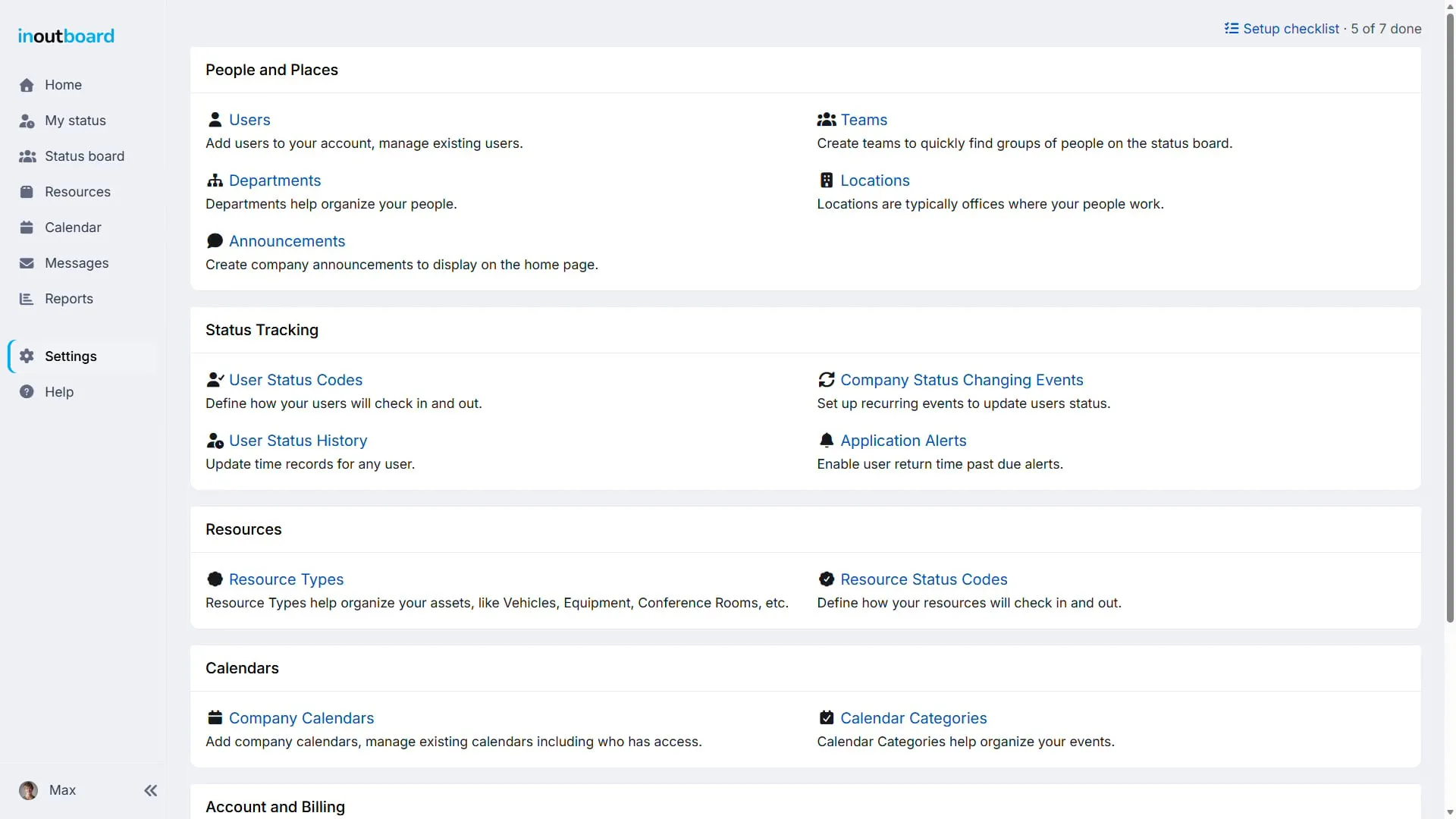
Once you set up your account, go to Setup Checklist on the top right and go through the steps to set up your account, including adding departments, locations, and teams.
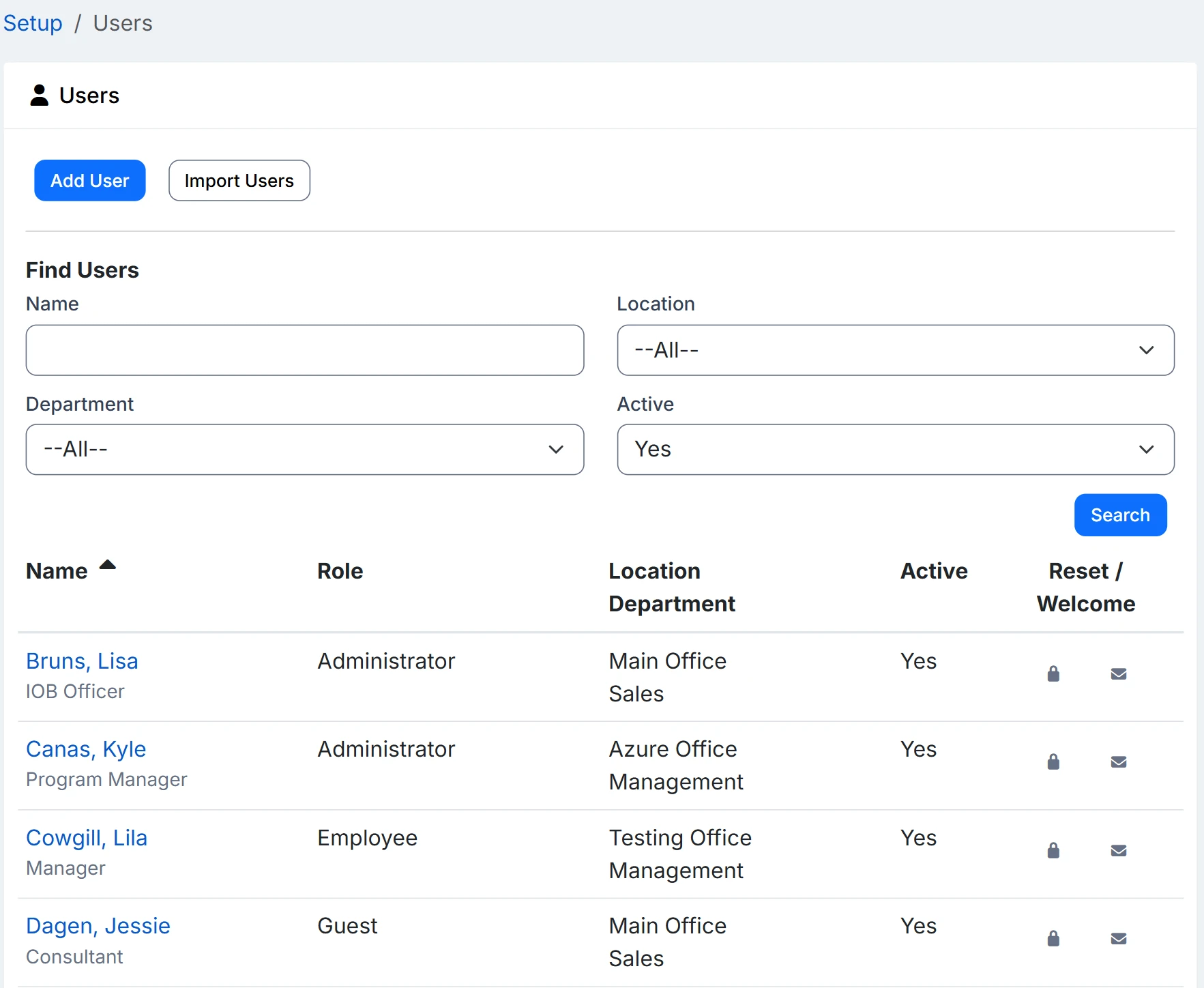
To start adding users, go to Users. You can either enter users one at a time or bring them all in at once by importing a spreadsheet.
Next, you can create your own status codes by going to User Status Codes. Here, you can add status codes that fit your business needs.
Three steps and you're live
Simple setup, not a project.
-
1. Create your company profile
Sign up for the free 30-day trial and add your company name, locations, and departments. No credit card required. The trial walkthrough.
-
2. Invite your team
Add coworkers and InOutBoard emails each one a link to set their own password. They sign in and appear on the status board. The user guide.
-
3. Make it yours
Customize statuses, views, and alert settings to match how your team actually works. Change anything later—nothing is locked in.
No IT project required
- Free 30-day trial with every feature included.
- No app store download—runs in the browser for everyone.
- Invite your whole team by email in one sitting.
- A short setup video and the Setup Checklist walk you through it.
- Support from the people who built it.
- No credit card, no commitment—cancel anytime during the trial.
Do I need a credit card to start?
No. The 30-day trial asks for a few details about you and your company, an email address, and a password. Payment details are entered only if you decide to continue, under Settings → Payment Center.
Can I import users from a spreadsheet?
Yes. Settings → Users has an Import Users button and a CSV template you can fill in with Excel. Save it back as CSV before uploading; an .xlsx file is refused. Adding users in bulk walks through it.
Can I change the status codes later?
Yes. Status codes, locations, departments, and alert settings can all be edited by an Administrator at any time under Settings. The defaults are there so the status board works on day one, not to lock anything in.
How do new users get their password?
When an Administrator saves a new user, InOutBoard emails them a link to set their own password. The welcome email can be re-sent from the Users list if it goes astray. When adding users in bulk, the Administrator can check a box on Step 3 of the Import Users process to send the welcome email.
Explore more features
Everything below is included with every InOutBoard account — no add-ons, no upgrade tiers. See pricing.


Join the thousands of teams who rely on InOutBoard
InOutBoard works great and very easy to use…from a safety standpoint, it's great to know quickly who's in the building and who isn't.
 Brenda S.
SIRWA
Brenda S.
SIRWA
Know who's in and out.
Instantly
Try every feature free for 30 days. No credit card required.