
Employee status board: Who's in, who's out—instantly
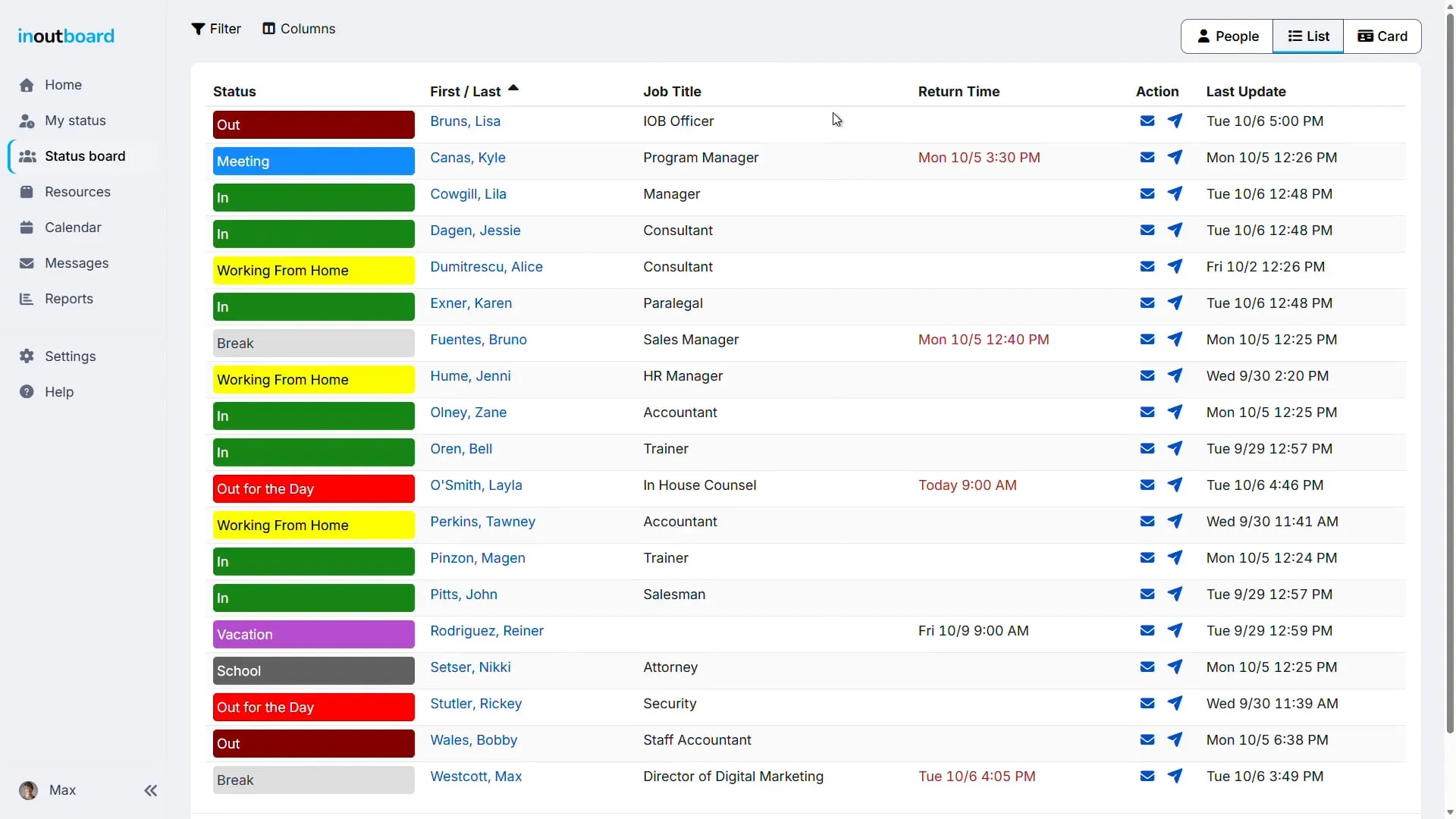
The status board is one shared view of every person's status, expected return time, and contact details: photos, names, titles, and when each status was last updated, filtered by location or department.
1:02 minutes
Read the status board video transcript
Welcome to the InOutBoard status board. Here, you are at the center of InOutBoard. Each row represents an employee, while the columns display details such as their status, return time, and their last update.
To modify the appearance of the status board, select People, List, or Card from the top right corner. Choose the view that you prefer.
To select the information displayed, click on Columns in the top left corner. Toggle any of the columns on or off to suit your workflow.
Need to narrow things down? Click the filter to sort your board by location, department, team, or status. You can also search by name to find someone instantly.
When a filter is active, the filter button turns red and says, “Filter ON,” ensuring you always know you're viewing a filtered list. To return to your full team, click Filter, then Clear.
Thanks for watching. Sign up today and start your 30-day free trial with InOutBoard.
Find employee availability and contact details
Find who you need fast—and everything about them.
-
Stay focused
Filter by location, department, and more to see exactly the people you manage. The status board refreshes itself while you watch it—every five minutes to start with, and you can change that or turn it off.
-
Quick access to user info
Click any name to instantly view profile details like email and phone number. Administrators, and Managers for people at their own location, also see status history, and everyone sees their own.
-
Customize your view
Pick from three display styles—People, List, or Card. Use filters and columns to tailor the status board to your preferences. How to change views, columns, and filters.
Update your status in seconds
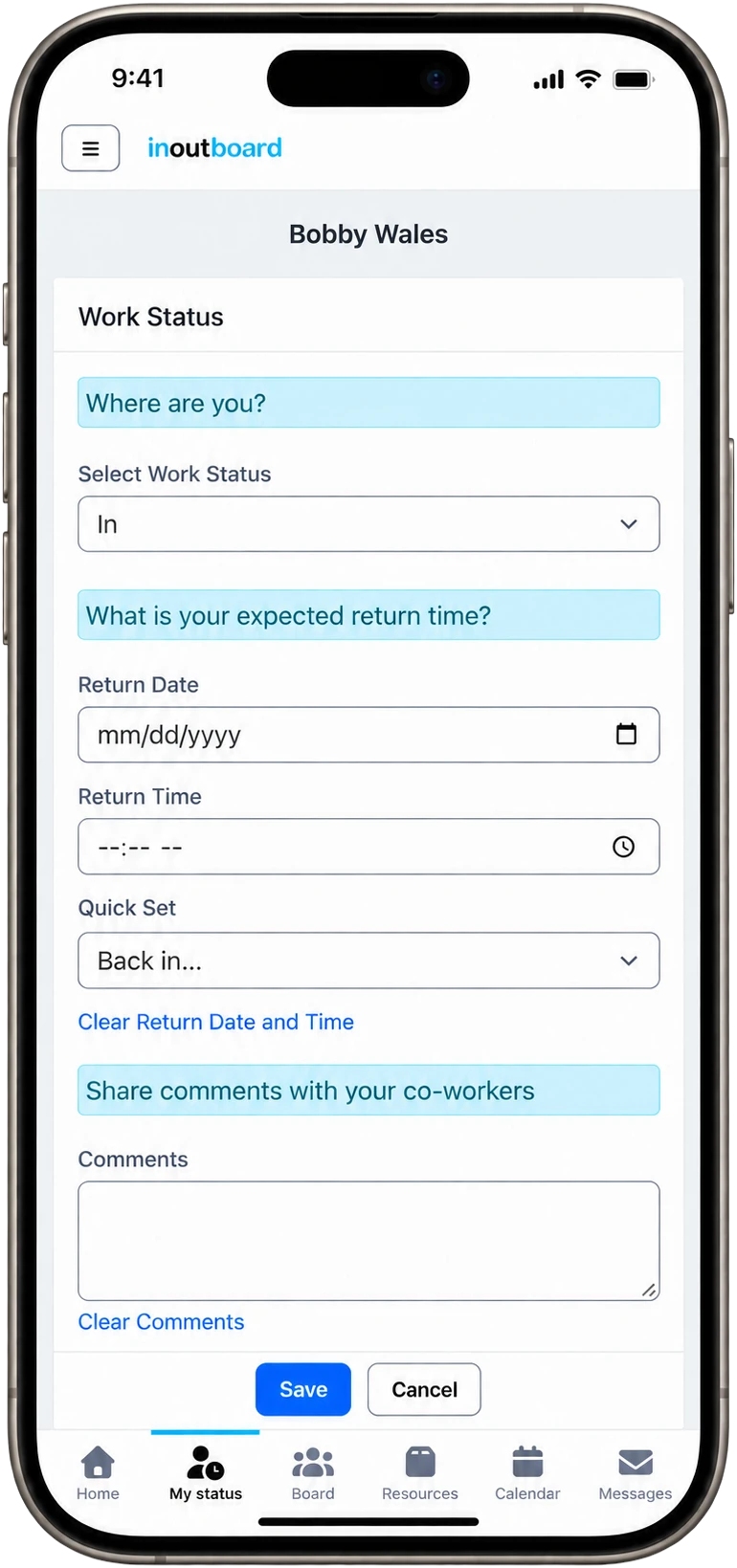
Choose your work status, add an optional return time or comment, and save your update.
Right from your phone
Tap My Status in the bar along the bottom of the screen, pick where you are, and save. It's one screen with three questions—where are you, when will you be back, and anything coworkers should know—so heading out the door doesn't mean leaving the status board out of date.
- Set a return time in one tap with Quick Set—15 minutes to 3 hours, or tomorrow morning.
- Your administrator can set a status to fill in its own return time—an hour for lunch, say.
- Running late? Your return time turns red so no one is left guessing.
- Add a comment with where you are or who to contact while you're out.
- Phone or desk, it's one board—the change is there the next time anyone looks.
How often does the status board refresh?
Every five minutes by default. Each person can change the interval for their own view, or turn auto-refresh off. Changes are not pushed live; the status board reloads on the interval you pick.
Can a manager change someone else's status?
Yes. Administrators can change anyone's status, Managers can change the status of users at their own location, and an Administrator can give any user except a Guest the “Allow this user to change the status of other users” setting to do the same. How to change someone else's status.
Can I choose which columns show?
Yes. Pick columns with the Columns button in People and List views, switch between People, List, and Card views, and sort by most columns (Comments and Action are not sortable). Filters stay on until you clear them. Status board help has the steps.
What does a red return time mean?
The person's expected return time has passed without an update. It needs no alert setup; the color is on the status board for everyone the next time it refreshes.
Explore more features
Everything below is included with every InOutBoard account — no add-ons, no upgrade tiers. See pricing.


Join the thousands of teams who rely on InOutBoard
This has been such a huge upgrade from our previous process. The Status Board is up all the time, giving us real-time status updates from our employees. Easy to use too.
 Elizabeth C.
City of Santa Cruz
Elizabeth C.
City of Santa Cruz
Know who's in and out.
Instantly
Try every feature free for 30 days. No credit card required.