
Status board views and settings
Views, columns, filters, and fixes—how to make the status board work exactly the way you want. New to it? Start with the Status Board feature overview.
What are the three status board views?
The three view buttons sit in the upper-right corner of the status board, and it opens in whichever one you used last.
- People shows a photo for everyone, with their job title under their name. Photos are optional.
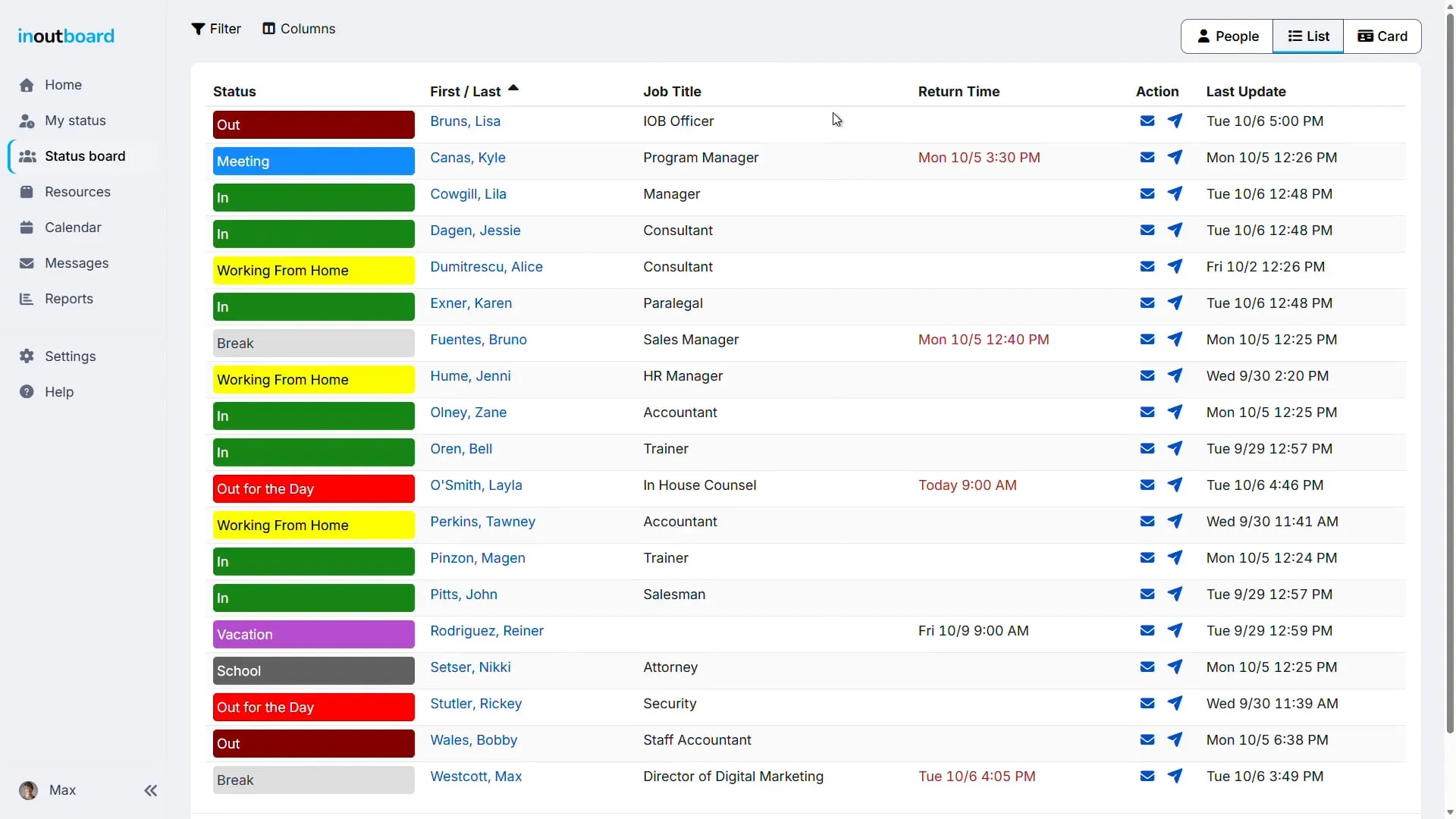
- List drops the photos for one compact row per person, so far more people fit on screen.
- Card lays everyone out left to right as business cards, always sorted by last name. This one works well on a reception desk or dispatch screen.
All three show the same people and share the same Filter link in the upper-left corner. People and List also have a Columns button for choosing what each row shows. Users with the Guest role do not get the status board at all—the menu item is hidden from them.
1:02 minutes
Read the video transcript
Welcome to the InOutBoard status board. Here, you are at the center of InOutBoard. Each row represents an employee, while the columns display details such as their status, return time, and their last update.
To modify the appearance of the status board, select People, List, or Card from the top right corner. Choose the view that you prefer.
To select the information displayed, click on Columns in the top left corner. Toggle any of the columns on or off to suit your workflow.
Need to narrow things down? Click the filter to sort your board by location, department, team, or status. You can also search by name to find someone instantly.
When a filter is active, the filter button turns red and says, “Filter ON,” ensuring you always know you're viewing a filtered list. To return to your full team, click Filter, then Clear.
Thanks for watching. Sign up today and start your 30-day free trial with InOutBoard.
Can I change the columns on the status board?
Yes. Pick the columns you want from the Column Options dialog:
- Open the status board in People or List view.
- Select Columns in the upper-left corner. The Column Options dialog opens.
- Check the columns you want and clear the ones you don't.
- Select Save.
The options are Job Title, Return Time, Comments, Display full comments, Work Phone, Mobile Phone, Other Phone, Send Email, Send Message (when Messages is turned on), and Last Update. People view has no Job Title option because it always prints the job title under each person's name.
Display full comments only becomes available once Comments is ticked. Leave it off and a long comment is shortened to fit its column; select the shortened comment to read all of it.
Card view has no Columns button—each card shows a fixed set of details.
Your column choices are stored in this browser, separately for each view, and stay until you change them. On a different computer, browser, or phone, set them again there.
How do I hide photos on the status board?
Switch to List view using the view buttons in the upper-right corner of the status board. It is the only view without photos, and it fits many more people on screen as a result. People view and Card view both show a photo for everyone, and people who haven't uploaded one get a plain placeholder image.
The status board remembers the view you were last in, so once you have switched to List it will keep opening there.
How can I show more rows on the status board?
- Scroll to the bottom of the status board.
- Open the Records to display dropdown in the lower-left corner.
- Choose 25, 50, 100, or 250.
The status board reloads with that many people per page. To move between pages, use the First, «, numbered, », and Last links beside the dropdown. All three views have this control, and your choice is stored in this browser, separately for each view.
For the most people on one screen, pair a larger record count with List view.
Can I sort the status board by first name?
Yes. The name column heading sorts by either name:
- Open the status board in People or List view.
- Find the First / Last column heading.
- Select First to sort by first name, or Last to sort by last name.
- Select the same word again to reverse the order. An arrow beside the heading shows which way it is sorted.
The headings you can sort on are Status, First, Last, Job Title, Return Time, Work Phone, Mobile Phone, Other Phone, and Last Update. Comments and Action are plain headings and cannot be sorted. Card view has no headings to select—it is always sorted by last name, then first name.
Sorting reorders everyone on the status board. To cut it down to particular people instead, use the Filter link described below—it includes a First or Last Name box. Your sort choice is stored in this browser, separately for List and People views.
How do I filter the status board by department?
- Select the Filter link in the upper-left corner of the status board. The filter panel opens.
- Choose any combination of Location, Department, Team, and Status, and type into First or Last Name if you want to narrow it further.
- Select Apply.
While a filter is set, the link reads Filter ON and turns red. To go back to everyone, open the panel again and select Clear.
Unlike your column and sorting choices, the filter is saved to your account rather than to one browser. It follows you to any computer or phone, applies to all three views, and stays on until you clear it—so if the status board ever looks like it is missing people, check for Filter ON first.
How do I update my own status from the status board?
- On the status board, select your own status. (You can also use Update Status on your Home screen, or My Status in the side menu, or in the bar along the bottom of the screen on a phone.)
- Pick where you are from Select Work Status.
- If you'll be back at a particular time, set Return Date and Return Time, or choose a Quick Set option: 15 minutes, 30 minutes, 45 minutes, 1 hour, 1.5 hours, 2 hours, 3 hours, or Tomorrow, which fills in 8:00 the next morning. Clear Return Date and Time empties both boxes.
- Add anything your coworkers should know in Comments, or select Clear Comments to empty the box.
- Select Save.
Some status codes require a return time. When you pick one of those, Return Date and Return Time gain an asterisk and you can't save without them. Return Date and Return Time also go together: fill in one and you have to fill in the other. If you select Save with only one of them filled in, the empty box turns red with a note telling you what to enter, and nothing is saved until you do (or select Clear Return Date and Time). If a return time passes before you update your status, it turns red on the status board.
Saving takes you back to wherever you started—the status board, your Home screen, or a profile. On your own status page there is also an Options setting, Always clear comments when I change my status, for people who would rather start from an empty box every time. It shows on a wide screen only, so set it from a computer.
2:26 minutes
Read the video transcript
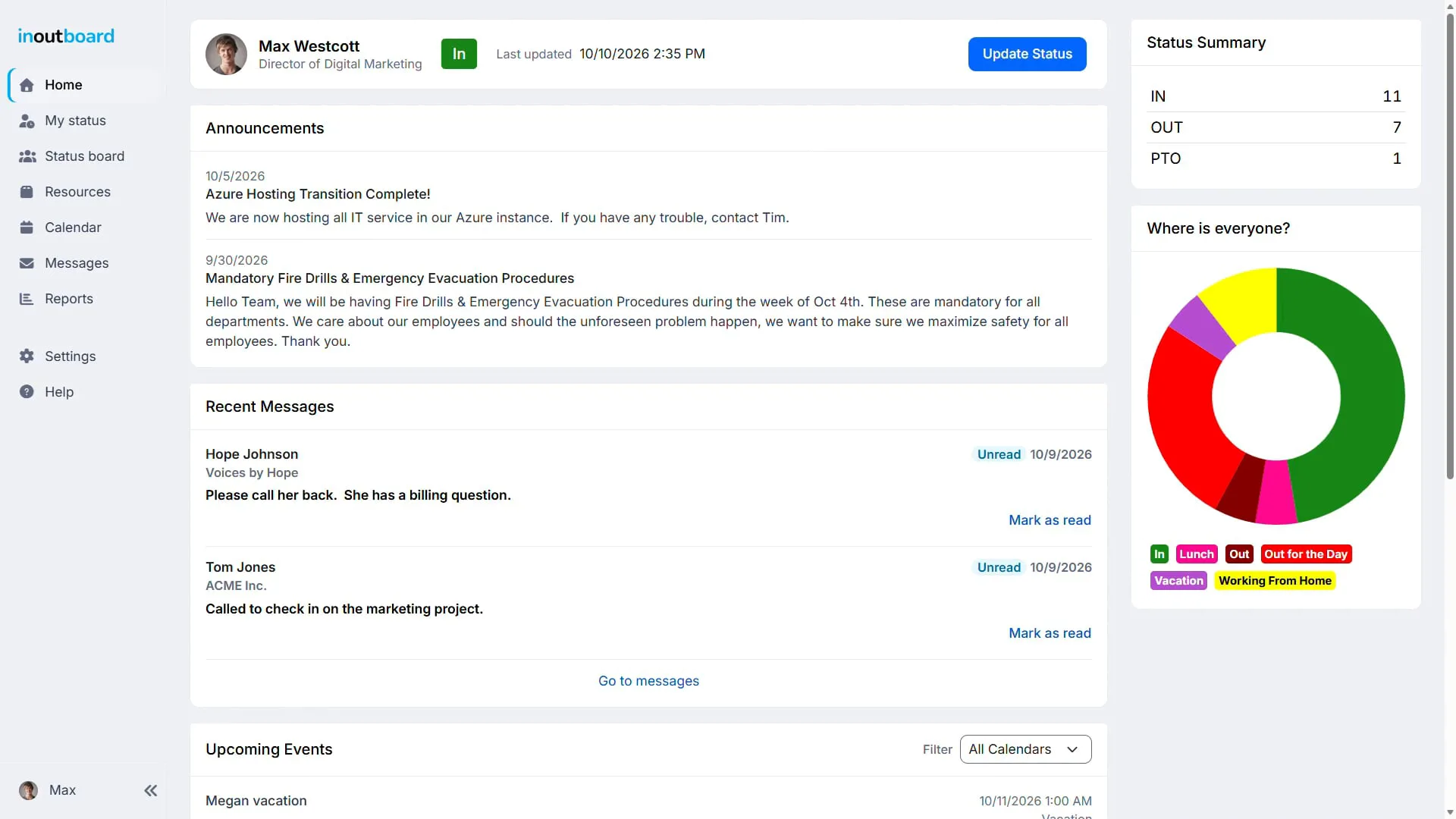
Welcome to InOutBoard Help. In this video, we will show you how to update your status. When you are on the home dashboard screen, you will see your current status on the top of your screen, along with your name, title, any comments you entered, and when your status was last updated.
Click the blue Update Status button to change your status. Then you will see the Work Status window, along with a card view of your user profile. Click in the Select Work Status box and choose a new status. These status codes are set up by an admin on your account. So if you don't see a status that you need, talk to an administrator about adding one.
Next, you can put in an expected return time. This is optional. Click the little calendar icon in the Return Date field to put in a date. Then click the little clock icon in Return Time to choose a time of your expected return. Make sure to choose AM or PM as well. If you would like to choose a quick-set return time, click in the box that says Back in, and you can choose anywhere from in 15 minutes to three hours or even tomorrow.
Some status codes that you choose will require a return date and time. If you see an asterisk next to Return Date and Time, you'll know it's required. Some codes also pre-populate with a return date and time. You can edit those if needed.
The last step is adding any comments, which is optional and will be shown on the status board for all users to see. Users commonly put in specifics about where they are going or how to reach them while they are out. The comments box is free-form text, and you can also put a URL in there. When you are done, click Save, and your status will update instantly.
If you are on the status board and need to update your status, you can do it right from the status board. Just click your status by your name, and you'll see the status change window. You can also always click the My Status link on the left of your screen if using a laptop or desktop. If you are using a mobile device, My Status will be an icon at the bottom of your screen.
Thanks for watching. If you need more help, explore the InOutBoard Help Center.
How do I change someone else's status?
Select that person's status on the status board. If you're allowed to change it, the status is clickable and opens the same page you use for your own status; if you aren't, nothing happens when you select it.
Who can change another person's status:
- Administrators can change anyone's status, at any location.
- Managers can change the status of users at their own Location.
- Anyone whose Allow this user to change the status of other users setting is Yes can change any user's status, whatever their role—except Guest—and whatever location that user is at. A Guest only ever changes their own status.
- Everyone else can only update their own status.
Allow this user to change the status of other users is a setting on an individual person's user record, not a role. (The roles summary in the application calls it All User Status Change.) It is a way to give one Employee—a receptionist or an office manager, say—the ability to update everyone, without making them an Administrator. To turn it on:
- Select Settings in the side menu, then select Users.
- Select the person's name in the list.
- Set Allow this user to change the status of other users to Yes.
- Select Save.
Only Administrators can open Settings, so only an Administrator can grant this. The default for a new user is No. For what each role can and cannot do, see Users.
How often does the status board refresh?
The status board reloads itself, and you choose how often. The Auto-refresh dropdown sits at the bottom of the status board, beside the record count, and offers Off, Every minute, Every 2 minutes, Every 5 minutes, Every 15 minutes, Every 30 minutes, and Every hour.
Out of the box the status board refreshes Every 5 minutes. The three views share one setting, so slowing down or turning off the refresh in List view does the same in People and Card view.
Your choice is stored in this browser, so a reception screen can sit on Every minute while your own laptop stays on something slower.
How do I correct a missed status update?
Only an Administrator can correct status history.
- Select Settings in the side menu, then select User Status History.
- Type the person's name in User and pick them from the list that appears, then check the Start Date and End Date—they start as the first of this month through today, or the dates you last searched—so that they surround the entry. Then select Search. Until you do, the page shows nothing, unless you have already searched in this browser session, in which case it opens on that person's results.
- Select Edit beside the entry that's wrong. The current entry, the one still running, has no Edit until the person's status changes again.
- Correct the Status Code, Start Date, Start Time, End Date, End Time, or Comments.
- Select Save.
If the time was never recorded at all, select Add Time at the top of the same page and enter it from scratch.
Corrections are not silent. The Changed By column shows the name of the Administrator who made the change and the date and time they made it, and that carries through to the time reports.
How do I automatically set statuses to Out at the end of the day?
Administrators can set up a recurring event that does it for them.
- Select Settings in the side menu, then select Company Status Changing Events. (The page it opens is titled Company Status Events.)
- Select Add Company Status Event.
- Give it a Name, such as End of Day, and leave Active set to Yes.
- Leave Location on --All-- to cover your whole account, or pick one location to limit the event to it.
- Choose the Status everyone should be changed to.
- Set Clear User Comments to Yes if yesterday's comments should be wiped along with the status.
- Set the Start Date, Start Time, and Time Zone the event should run in, then check the days of the week it should run on.
- Select Save.
What the event moves depends on the type of the status code you chose:
- An Out-type status changes everyone who is currently in an In-type status.
- An In-type status changes everyone who is currently in an Out-type status. Set one of these for the start of the workday if you want everyone marked in each morning.
People already in a PTO-type status are left alone by both, so an end-of-day event won't pull someone off vacation. PTO-type status codes are not offered in the Status list. Only active users are changed. Status code types are set in Settings → User Status Codes—see Status Codes.
Why does my status history show “System Account”?
It means the application changed that status on its own, so there is no person to name. Two things do this: an event on your My Calendar that carries a status change, and a company status event set up by an Administrator. System Account is what you'll see in the Changed By column of your status history and on any time reports for those changes.
Still need help?
Have questions about board views, status updates, or managing your team's availability? Contact our support team.
New to InOutBoard?
Try every feature free for 30 days. No credit card required.