
What are Alerts?
Alerts tell people when someone has not come back on time. The feature was originally built for our federal partners, whose staff work in forests, deserts, and wilderness—but it suits any team that sends people out alone.
It works off return times. Some status codes ask for one: pick Out in the Field and you have to say when you will be back. If that time passes and the status has not changed, InOutBoard warns the person first, then tells their manager, then their second-level manager.
Alerts are separate from messages, which are notes people send each other by hand—see How do I send a message? below. Both reach people by email, text, or both, according to each person's own Alert Settings.
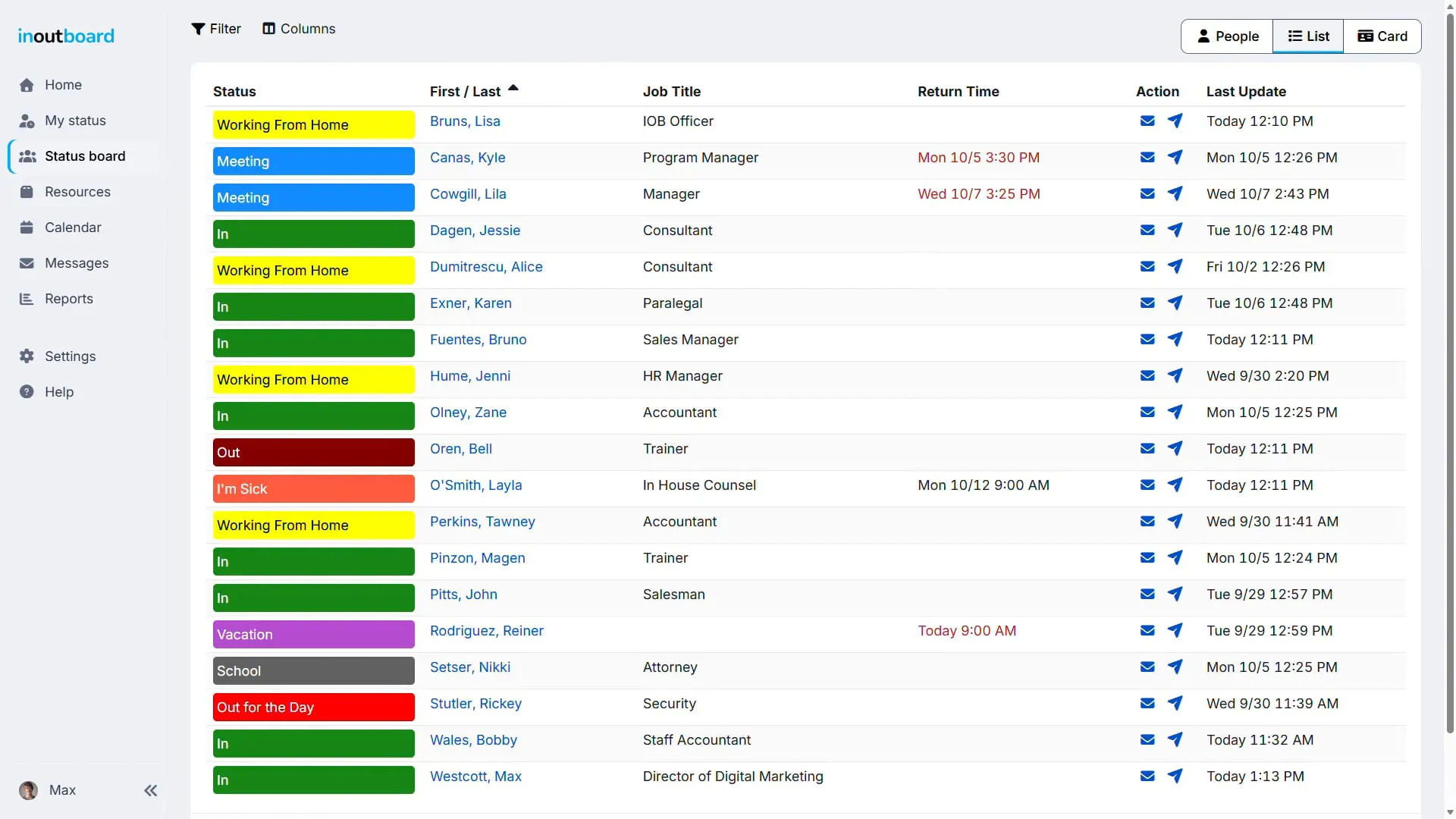
One thing works with no setup at all: on the status board, a return time that has already passed is shown in red. That happens whether or not alerts are switched on.
How do I set up Alerts?
Four things have to be in place. Miss any one of them and nothing is sent.
1:06 minutes
Read the video transcript
Whenever an employee misses their return time, InOutBoard’s alert system will notify a manager via email or text message. Getting started only takes a minute.
Administrators can turn on alerts and application alerts and choose how long to wait before messages are sent, ranging from 15 minutes up to three hours.
On your profile, open Alert Settings and choose how you want to hear from InOutBoard, either via email, text, or both.
If you already have a confirmation code, type it in the box on the right.
After setting up alerts, click on Edit Profile and add your manager and second-level manager so the right people are notified if you’re running late.
There’s no GPS and no tracking, just a simple check-in that runs in the background.
Even without alerts on, overdue return times show up in red on the status board.
Thanks for watching. Sign up today and start your 30-day free trial with InOutBoard.
1. Require a return time on the status codes that need one
Only a status code with Return Time Required set to Yes can produce an alert. Administrators only.
- Select Settings in the side menu, then select User Status Codes.
- Select the code's name in the list.
- Set Return Time Required to Yes.
- Select Save.
Do this for every code that should be watched, such as Out in the Field, On a Service Call, Site Visit. Leave the rest on No; nobody wants a manager alerted because somebody is at lunch. New codes start on No. See Status Codes for what else that setting does, and for the Fixed Return Time and Offset By options that fill the Return Time in for people.
2. Switch alerts on for the organization and set the timing
Administrators only. These settings apply to everyone in the organization.
- Select Settings in the side menu, then select Application Alerts.
- Set Enable Return Time Past Due Alerts to Yes.
- Choose Send a warning to the user before their return time is past due.
- Choose Send an alert to the user's manager after their return time is past due.
- Choose Send an alert to the user's Second Level Manager after their return time is past due.
- Select Save.
All three offer the same seven choices: 15, 30, or 45 minutes, or 1, 1.5, 2, or 3 hours. Until the page is saved for the first time, InOutBoard behaves as though the warning is 15 minutes, the manager alert 15 minutes, and the second-level alert 30 minutes.
3. Give people a Manager and a Second Level Manager
These two fields on a person's record decide who the escalation goes to. If a field is empty, that step is skipped—quietly, with nothing to show for it.
- Select your name at the bottom of the side menu, then select Profile and settings in the menu that opens.
- Select Edit Profile.
- Type a name into Manager and into Second Level Manager, and pick from the list that appears.
- Select Save.
Anyone except a Guest can set their own two managers this way; Edit Profile always edits your own record. A Guest's managers are set by an Administrator. An Administrator can set them for anyone, in Settings → Users → the person's name. See Users for the rest of the user record.
Neither person has to hold the Manager role. Any user can be named in either field. A Second Level Manager is not required—leave it empty and the escalation simply stops after the manager.
4. Have each person turn their own alerts on
Nobody can do this for anyone else—the Alert Settings page only ever edits your own record. See How do I get alerts by email or text? below.
New users start with email alerts on and text alerts off, so email works as soon as the first three steps are done.
Who gets an alert, and when?
Four alerts can come out of one overdue status. Two go to the person, two go up the line.
- A warning, to the user. Sent before the return time, by the interval an Administrator chose. “You will be overdue in 15 minutes. Please update your InOutBoard status ASAP.”
- A past-due notice, to the user. Sent at the return time. “You are now overdue. Please update your InOutBoard status or contact your manager ASAP.” This one has no setting—it is not on the Application Alerts page and its timing cannot be changed.
- An alert to the Manager. Sent after the return time, by the manager interval.
- An alert to the Second Level Manager. Sent after the return time, by the second-level interval.
Both manager intervals are measured from the return time, not from each other, and nothing stops you setting them the wrong way round. If you want a real escalation, make the second-level interval the longer of the two: 30 minutes and 1 hour gives a manager half an hour to sort it out before it goes further. Set both to 15 minutes and both alerts go out together.
The manager alerts name the person and how late they are—“Your employee Dana Ruiz is 30 minutes overdue. Please confirm their status and update InOutBoard.”—and the email subject line carries the name and the return time, so it reads correctly on a phone's lock screen.
Each alert is sent once
Nobody is paged over and over. Each of the four is sent at most once for a given status, and all four are reset when the person changes their status code or changes their return time. Editing only the comments does not reset them.
So somebody who realizes they will be late and pushes their return time out gets a fresh set of alerts against the new time, which is what you want.
What has to be true before anything is sent
- Enable Return Time Past Due Alerts is Yes for the organization.
- The person's current status code has Return Time Required set to Yes.
- The person has a return time, and it is less than three hours away. Nothing is looked at earlier than that—so a 3-hour warning interval fires roughly as the return time comes into view, not comfortably before it.
- The person's account is active, and so is the organization's.
- For the third and fourth alerts, the person has a Manager and a Second Level Manager on their record.
- The recipient has email or text switched on in their own Alert Settings.
How do I get alerts by email or text?
Each person turns on their own. You only do it once, and it stays that way until you change it.
- Select your name at the bottom of the side menu, then select Profile and settings in the menu that opens.
- Select Alert Settings.
- Tick Enabled under Email, under Text message, or both.
- Select Save. You go back to your profile.
Nothing changes until you select Save; leave the page without it and your alert settings stay as they were. To turn a channel off again, clear its box and save.
Email goes to the address on your profile, which the page shows you under Email. If it is wrong, fix it under Edit Profile.
Turning on text messages
The Text message checkbox is not there until your number is verified. Until then the page offers an activate text messaging link instead.
- On Alert Settings, select activate text messaging. The Mobile Settings page opens.
- If no number is on your record yet, type it into Mobile Number—including the area code, and the country code if you are outside the United States.
- Select Activate Text Messaging. A six-digit code is texted to that number. The code is good for 10 minutes and five tries; after that, or if it never arrived, select Activate Text Messaging again, which sends a new code at most once a minute.
- Type the code into Enter Confirmation Code and select Save. If the code arrives after you have left the page, come back and use the Already have a confirmation code? box on the right, then select Confirm.
Verifying switches text alerts on for you, so there is no need to go back and check the box. The number then shows as (Verified).
Changing a mobile number un-verifies it. Whether you change it on your own profile or an Administrator changes it in Settings → Users, the verification is dropped and texts stop, without a warning. On Alert Settings, the Text message checkbox is replaced by the activate text messaging link until the new number is verified. Verify it the same way.
How quickly do alerts arrive?
Usually within a few minutes. Alerts are not instant, and InOutBoard does not guarantee a delivery time. Do not build a safety procedure that depends on one arriving by a particular moment.
What actually happens: a background job checks return times about once a minute and writes any alert it finds into a queue. A later pass of that same job picks the queue up and hands each alert to our email or text provider. Delivery from there is up to that provider and the recipient's carrier.
If a send fails, InOutBoard tries again on later passes and gives up after about ten attempts.
For anything genuinely time-critical, treat alerts as a backstop and the status board as the live picture—an overdue return time turns red there with no queue in between.
An alert never arrived. What should I check?
Work down this list; it is in the order things usually go wrong.
- Is the status code set to require a return time? In Settings → User Status Codes, the list has a Return Time Required column. A code showing No never produces an alert, even if somebody typed a return time in by hand.
- Is the feature on? Settings → Application Alerts → Enable Return Time Past Due Alerts must be Yes.
- Does the person have both managers set? Open their profile and look at Manager and Second Level Manager. An empty field means that step is skipped silently.
- Has the recipient switched alerts on? In their own Alert Settings. Text alerts are off for new users.
- Is the mobile number verified? On Mobile Settings it must read (Verified). If it says (Not Verified)—which happens by itself whenever the number is changed—texts are dropped without being sent and without being retried.
- Did the person change their status? Changing the status code or the return time clears the alerts for that status, so one that was about to go out will not.
- Check the spam folder, then confirm the address on the person's profile is the one you expect.
If all of that checks out, contact support with the person's name and the return time in question.
How do I send a message?
Messages are short notes inside InOutBoard—a phone message taken at the front desk, a note to a team. They are kept in the application, and they also reach people by email or text according to each recipient's own Alert Settings.
- Open Messages in the side menu, or in the bar along the bottom of the screen on a phone.
- Select New Message, at the top of the page.
- Under Select Users, start typing a name and pick from the list. Add as many as you need.
- Under Select Teams, do the same for teams. Click here to see a list of teams shows you what is available.
- Fill in From. This is required, and it is free text—type the caller's name, or select me beside the label to drop your own name in.
- Add a Company and a Phone if you are passing on a call. Both are optional.
- Leave Priority on Normal, or set it to High.
- Type the Message. This is required.
- Select Send Message.
Everyone on the teams you picked, plus everyone you picked by name, gets their own copy. Somebody who is both on a chosen team and chosen by name still gets only one.
There are quicker routes to a single person: the envelope icon beside their row on the status board, and the Send Message button on their profile. Both open the same form with the recipient already filled in.
Any signed-in user except a Guest can send a message; Guests read the messages sent to them but cannot send one. If Messages is missing from the side menu (or from the bar along the bottom on a phone), an Administrator has set Messages to Off for the organization, in Settings → Applications and Features.
How do I read and manage my messages?
Open Messages in the side menu, or in the bar along the bottom of the screen on a phone. Two folders sit at the top of the page, beside New Message: Inbox, with a count of the messages you have not read yet, and Sent. A Guest sees only the Inbox.
- Inbox—everything sent to you, newest first, 25 to a page with page buttons below once there are more, showing who it is from, when it arrived (Received, then the time for today or the date for anything older), and the start of the message. Type part of a name in From and select Search to list only the messages from that person; Clear shows them all again. An unread message is in bold with an Unread label and a Mark as read link, and Mark all as read at the top clears them all at once (under a search, only the messages it lists). A high-priority message carries a red exclamation mark.
- Sent—everything you have sent in the last three years, newest first and 25 to a page, showing who each one went to, when you sent it (Sent, then the time or date), and the start of the message. Type part of a name in Sent to and select Search to list only what you sent to that person; Clear shows them all again.
Select the sender's name or the message text to open it. Opening a message in your Inbox marks it read at that moment; opening your own copy in Sent does not.
To delete one, open it and select Delete, then Delete again in the confirmation box. You can delete anything in your own Inbox. You can delete something you sent only while it is still unread—once the recipient has opened it, it is theirs.
A message sent to six people is six separate copies. Deleting one from your Inbox removes only your copy, and it leaves the sender's Sent folder too. Deleting one from Sent, while it is still unread, takes it back from that one recipient.
Each message is deleted automatically three years after it was sent, read or not. Until then your Inbox keeps what you leave in it.
I replied to an alert on my phone and nothing happened.
Alerts and messages sent to your phone are one-way. They are notifications, and nothing reads a reply—which is why alert and message texts end with (do not reply).
To answer, open InOutBoard, go to Messages, and select New Message. There is no Reply button on a message you have received, so address the new one yourself. The From, Company, and Phone on the message you received tell you who to send it back to.
If the alert was about your own return time, the thing to do is not to reply at all—update your status, which clears the alerts and stops the escalation.
Still need help?
Questions about alert timing, escalation, or notifications that are not arriving? Contact our support team.
New to InOutBoard?
Try every feature free for 30 days. No credit card required.