
The status board for Engineering, Construction & Architecture
InOutBoard is an online in/out status board where crews and project managers set their own status and return time from a phone, so the office can see who is on which site and who has not checked back in. Office, job site, or on the road—one board shows it all. Know who's on site, who's in the office, and who hasn't checked back in—across every project and crew.

From the trailer to the front office
-
See who's on which site
Crews and project managers set their status, naming the site in the comment, so the office knows where everyone is without a phone call.
-
Know when someone doesn't check back in
A superintendent's solo site visit carries a required return time. Miss it and the status board shows it in red; the managers on their profile get an email or text.
-
Track shared vehicles and equipment
Reserve trucks, survey gear, and tools—and see who has what before you drive to the yard.
-
Site hours you can bill
The job number goes in the status comment, so the Time History export sorts site hours by project—hours to bill against, without chasing timesheets.
Every solo site visit gets an expected return time
A few minutes in Settings, and a return time that lapses notifies the people you name.
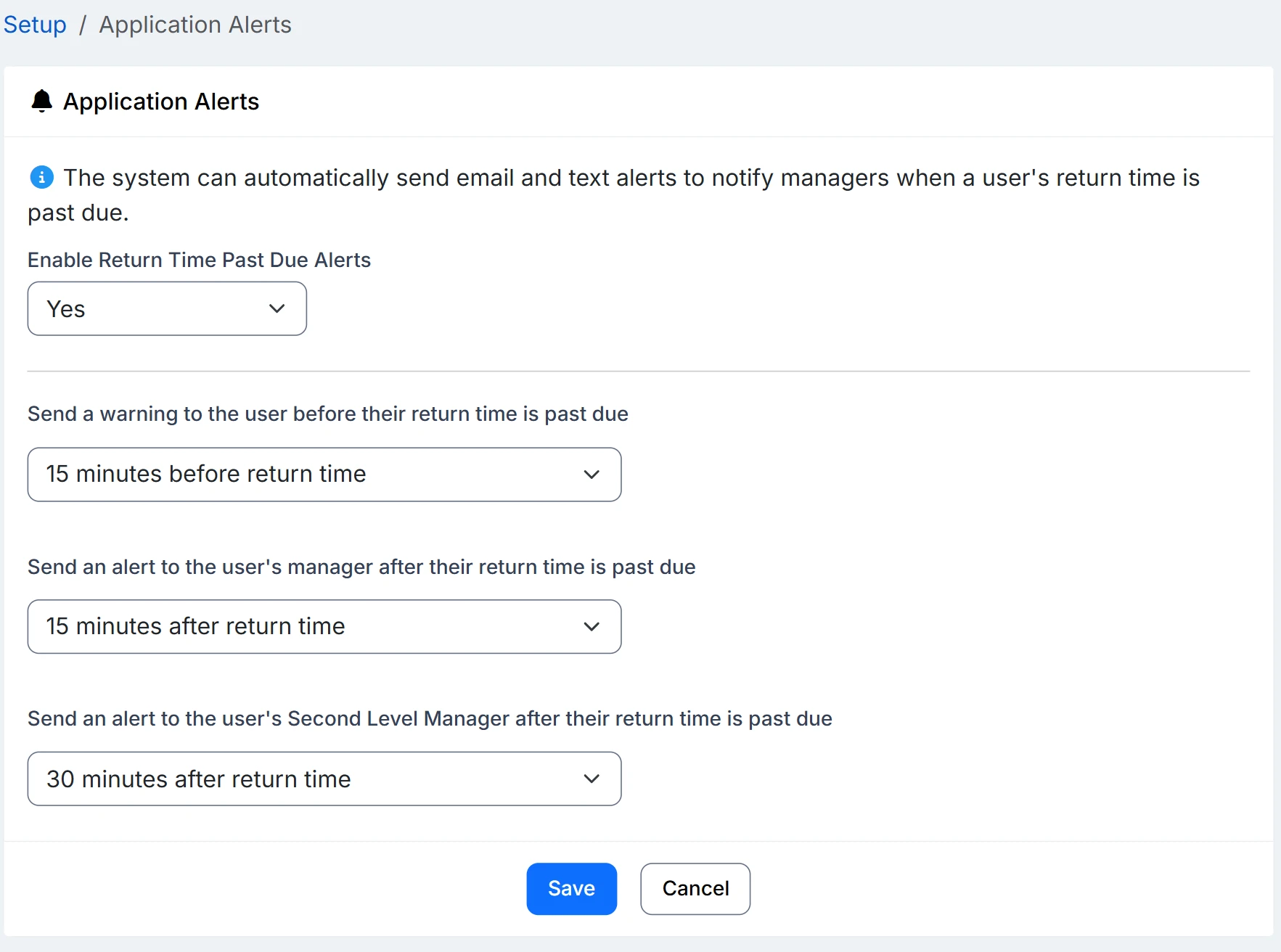
How a solo site visit is covered
- An Administrator opens Settings, then User Status Codes, and adds an On site code with Offset By set to four hours—so picking it sets an expected return without anyone doing the math. They also set Return Time Required to Yes.
- Decide who hears about it. The managers named on each user’s profile are the ones alerted, and each picks email, text, or both.
- The superintendent selects On site from a phone in the truck, with a comment for the job number and a site contact.
- If the return time passes with no update, the return time turns red for the whole office, and the supervisor gets an email or text once your configured alert interval has passed. Running long is one tap—push the return time out and the clock resets.
- At the end of the month, export the Time History Report to CSV. If every On site status change carries the job number from its comment, site hours can be sorted by project for review.
Overdue alerts need a few things in place: alerts enabled, a status code that requires a return time, a manager assigned on each user’s profile, and recipients opted in to email, or to text with a verified mobile number.
Can we report site hours by project?
Yes, with one habit: put the job number in the status comment when picking On site. The Time History Report exports every status change with its comment to CSV, so site hours sort by job number in a spreadsheet. A person's Location in InOutBoard is their home office, not the project, so use the comment rather than a location per project.
Do subcontractors need a license?
Only if you want them on the status board. Each active user takes one license in any role, and there is no separate contractor type. People who rotate off can be set to Inactive and stop counting until you reactivate them.
Does it track where people are?
No. There is no GPS. The status board holds the status, return time, and comment each person recorded; a superintendent who moves sites updates their status, and a return time that passes without one turns red.
Where to go next
The pieces this page describes, in detail.
Half the company is never at a desk
Field engineers, superintendents, architects on site visits, office staff—when your people are spread across projects, InOutBoard keeps everyone on the same page.


Join the thousands of teams who rely on InOutBoard
InOutBoard works great and very easy to use…from a safety standpoint, it's great to know quickly who's in the building and who isn't.
 Brenda S.
SIRWA
Brenda S.
SIRWA
Know who's in and out.
Instantly
Try every feature free for 30 days. No credit card required.