
Adding and managing users
Adding and managing your people—one at a time or in bulk, with roles, teams, and reports—plus removing users, time zones, locations and departments, and your own profile details. Adding users is step two of setting up your board.
How do I add a user to InOutBoard?
Administrators can add, edit, and delete users in your organization's InOutBoard account. To add a user:
- Select Settings in the side menu, then select Users.
- Select Add User.
- Enter a username. We recommend using the person's email address.
- Complete the remaining required fields. Fields marked with an asterisk (*) are required for every user.
- Select Save.
The line under Add User shows how many of your licensed users are active, for example 22 of 25 licensed users active. Inactive users do not count. When every license is in use, Add User and Import Users are hidden and a message explains how to add more; you can also free a license by setting someone to Inactive.
Saving sends the new user a welcome email with a link to set their own password, which must be at least 12 characters and contain at least one number and one letter. Yes, send welcome email is selected by default — clear it if you would rather notify them later, and you can send the email at any time from the Users page.
Can I add users in bulk?
Yes. From Settings and Users, select Import Users. The Import Users page opens, with four steps:
- Select Download Template. The template is a CSV file, and CSV is the only format the import accepts. Keep the template's first line of headings: the import matches your columns by heading, in any order, ignoring capitals and spaces (so First Name works as well as FirstName). If the first line is missing, or lacks one of the five required headings, nothing is imported and the page says which heading is missing.
-
Fill in one row per user. These columns are required:
- FirstName — up to 50 characters
- LastName — up to 50 characters
- Email — up to 256 characters
- Location — up to 100 characters; created for you if it is not already in your settings
- Department — up to 100 characters; created for you if it is not already in your settings
- JobTitle — up to 50 characters
- WorkPhone — up to 100 characters
- MobilePhone — the number text alerts go to: 10 digits for the US and Canada, or + followed by the country code and number
- Role — accepts Administrator, Manager, Employee, or Guest; left blank it defaults to Employee. See What can each user role do? below for what each one can do.
- Choose your saved file. To email each imported user a link to log in, select Yes, send welcome email — it is not selected by default, and nobody is notified unless you select it. Then select Upload File and Process Data.
- Review the results. A count of users imported and not imported comes first. Every row is then listed with its line number in your file, as Success or Failed, and each failed row gives its own reason — a missing required column, a value longer than its limit, an invalid email format, a mobile number that cannot receive text alerts, an invalid role, an address that already belongs to a user in your account, the same address as an earlier row in the file, an address already used as a username by another account (possibly in another organization), a quotation mark with no closing mark, or more users than your license allows (the rows past the cap are listed, not imported). Any location or department the import created is named under the count, with the line it came from, so a misspelled one is easy to spot. If an imported row says the welcome email could not be queued, the user was added; send the email from the Users list with the envelope button. To fix the failed rows, select Download Rows Not Imported: the file has just those rows, with their line number and reason, and can be corrected and uploaded as it is. If you continue to have problems, contact us.
To download your users, select Export to CSV on the Users page. The file has every user that matches your choices under Find Users, not just the page on screen, in the template's columns followed by Active and Last Sign-in. It is useful for checking your user list or sharing it with HR. Importing it again does not update anyone: the import only adds new users, and refuses any email address already in your account. To change existing users, edit them, or use the actions in changing several users at once.
How do I resend a welcome email?
A welcome email gives the user a Verify account button to set their password, along with their username and the address to log in at. To send another one:
- Open Settings and select Users, then find the person — enter a Name under Find Users and select Search, or page through the list, which shows 25 users to a page.
- At the end of their row, under Reset / Welcome, select the envelope button labeled Send Welcome Email. The padlock beside it is Reset Password, which sends a different email.
- Check the name in the Send Welcome Email window, then select Send.
To find everyone who has not signed in yet, set Signed in under Find Users to Never signed in and select Search. The Active / Last Sign-in column shows the date each user last signed in, or Never. To send the welcome email to several of them at once, tick their rows, choose Send Welcome email under With selected users, and select Apply; inactive users are skipped, because they cannot sign in. The Setup checklist on the Settings page links straight to the never-signed-in list.
Each resend issues a new verification link and retires the one in any earlier email, so ask the user to open the most recent message. If they cannot find it, have them check their Junk Email folder and spam filters, and add mail from inoutboard.com to their Safe Senders list.
What can each user role do?
Administrator: full access. Only Administrators can open Settings, where users, locations, departments, teams, status codes, calendars, company details, and billing are managed. They can change any user's status at any location, and run every report across all locations.
Manager: can change the work status of users at their own location, and run the status, emergency, and user reports for that location. Managers cannot open Settings, so adding, editing, and deleting users stays with Administrators.
Employee: the most common role. Employees update their own status and view the status board. Their reports are My Time Card Report, My History Report, the Location Report, and, when Resources is turned on, the Resource Status Report and Resource Status History Report; the status, emergency, and user reports are not open to them.
Guest: the most limited role. Guests see the dashboard, update their own status, edit their own profile (except location, department, and managers, which an Administrator sets), read the messages sent to them, and use Help. They cannot send messages or view the status board, other users’ profiles, the calendar, resources, or reports.
One setting on a person's record widens what their role allows. An Administrator can set Allow this user to change the status of other users to Yes, and that person can then change anyone's status, at any location. It has no effect on a Guest. See How do I change someone else's status?
How do I reactivate an inactive user?
Only Administrators can add, edit, and delete users. Making a user inactive does not delete them, so if adding someone returns “That username is already registered”, search for the existing account before trying to add it again — it may only need reactivating.
- Select Settings in the side menu, then select Users.
- Under Find Users, enter the person's first or last name in the Name field.
- Set Location and Department to --All--.
- Set Active to Either, so inactive accounts are included in the results.
- Select Search, then select the person's name in the results to open their record.
- On the Edit User screen, change Account Status to Active.
- Scroll down and select Save. You are returned to the Users list, on the page you opened the user from.
Your choices under Find Users stay in place until you close the browser, including when you come back from a user's record. Select Clear to go back to the full list of active users. To reactivate several users at once, see changing several users at once.
If no matching account turns up, the username may already be registered to an account outside your organization, which you cannot reactivate yourself. Contact us and we will help you sort it out.
If the reactivated user does not remember their password, select the padlock button labeled Reset Password at the end of their row (see resetting someone else's password), then select Reset password — that emails them a link to reset it. The envelope next to it, Send Welcome Email, sends the account-verification message instead.
How do I create and manage teams?
A team groups users who work across different departments or locations — a project, a committee, a shift. Only Administrators can create, edit, or delete teams, and a user can belong to as many teams as you need. Teams give you a Team filter on the status board, a team to address a message to, an audience for an announcement, and a way to give a whole group access to a shared calendar. You can have as many teams as you like, or none at all.
- Open Settings, select Teams, then select Add Team.
- Enter a Team Name. It is the only required field — Description is optional.
- Select Save. The team's members page opens next.
- Select Add Members, start typing a name under Users, and pick each person you want. You can add several at once.
- Select Save.
To change who is on a team later, select the Members button beside it in the Teams list; the number on the button is how many members it has. Members are listed 25 at a time, and once a team has 10 or more, a Search members by name box above the list finds anyone on any page. Use Add Members to add more people. To take someone off, select the trash-can button on their row, whose tooltip reads Remove from team, then Remove to confirm. Removing someone from a team does not affect their user account. Only active users who are not already on the team can be added.
To rename a team or change its description, select its name in the Teams list. That page also has a Delete button, which asks you to confirm first; deleting a team does not delete the user accounts in it.
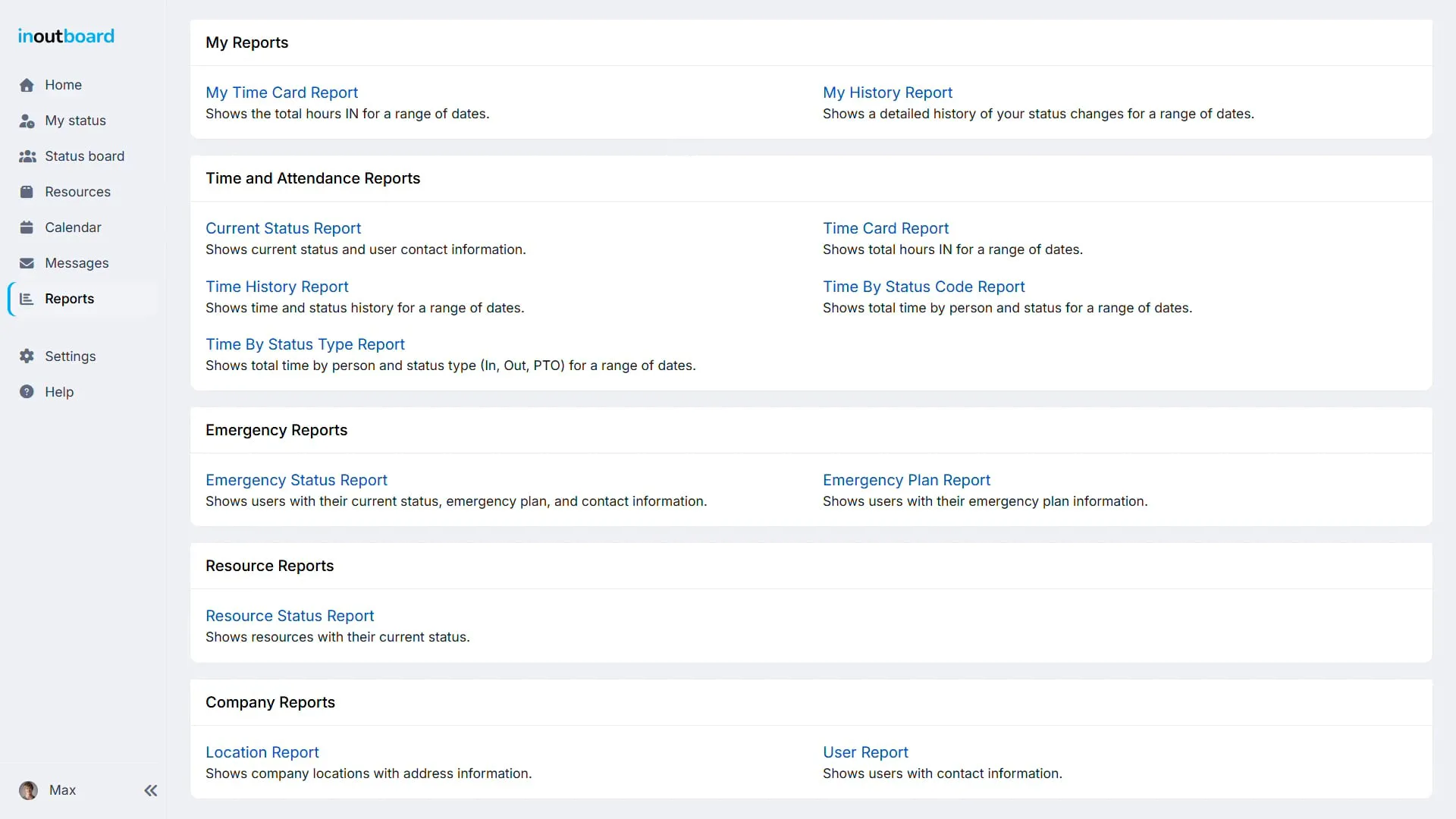
Which reports can I run?
Every role except Guest can run their own two reports plus the Location Report, and the Resource Status Report and Resource Status History Report when Resources is turned on. The time and attendance, emergency, and user reports are open to Administrators and Managers only — a Manager sees their own location, an Administrator sees them all. Every report has an Export to CSV button and a printable version, but the filters differ from report to report.
Print opens the report in a new tab, ready to print: your browser's print dialog opens by itself, and the bar at the top has Print to open it again and Close to close the tab and return to the report and its filters. Column headings repeat at the top of each printed page. Export to CSV downloads the same report as a file named with the report and the date, such as TimeCardReport-2026-10-07.csv, which opens in Excel, Google Sheets, or Numbers.
Your own reports
My Time Card Report: your total daily hours from IN statuses over a date range you choose. A summary of the detail in My History Report.
My History Report: your own status changes over a date range, with the status, type, hours, and any comments.
Company reports
Location Report: your organization's locations with address, phone, and fax numbers. Open to every role except Guest, and the one report with no filters.
User Report: contact details for users, filtered by location and department, with an option to include addresses.
Time and attendance
Current Status Report: the status recorded for every user right now, when each was last updated, and their contact details. Filter by location, department, and status code.
Time Card Report: total daily IN hours for one user or all users over a date range. A summary of the detail in Time History Report.
Time History Report: every status change over a date range, with who changed it, the hours, any comments, and the IP address recorded with the change. Filter by date range, location, department, status code, status type, and user. Only active users are included unless you select Include inactive users; users who have been deleted are never included.
Time By Status Code Report: time totaled by status code — In, Training, Lunch, and so on — with the same filters as the Time History Report, including the inactive-users option.
Time By Status Type Report: the same totals rolled up into the three status types, In, Out, and PTO, with the same filters and option.
Emergency reports
Emergency Status Report: the status recorded for each user and when it was last updated, alongside their emergency contact details. Filter by location and department, and optionally include addresses.
Emergency Plan Report: the emergency plan details users have entered, with the same filters. Only the user can enter this information, from their own profile.
Resources
Resource Status Report: the current status of your active resources, filtered by type, location, status, status type, and who the resource is assigned to. Available when your organization has resources turned on, to every role except Guest.
Resource Status History Report: every status change for your resources over a date range, with who each one was assigned to, who changed it, the hours, and any comments. Filter by resource, type, location, status, status type, and who the resource was assigned to. Only active resources are included unless you select Include inactive resources, or pick one resource in Resource; deleted resources are never included. Available when your organization has resources turned on, to every role except Guest.
Report hours are totaled as decimals rather than minutes, so 15 minutes reads as .25, 30 minutes as .50, and 45 minutes as .75. Dates and times follow the Region set on your user record, so a region using a 24-hour clock shows 14:00 where a United States region shows 2:00 PM.
Less than 1 minute
Read the video transcript
Every time your team updates their status, InOutBoard keeps a record. Reports turn that record into answers when you need them.
Need to check hours before payroll? The time history report totals in, out, and PTO time for each person with no chasing down timesheets or piecing together spreadsheets. Filter by location, department, or person. Managers see their own location, and employees can pull their own time card and history anytime.
When something unexpected happens, every second counts. The emergency status report pulls up everyone’s last recorded status, their location, and their emergency contacts in one place, giving you a head start on roll call.
Export any report to CSV with one click, ready for payroll, grant reporting, or your records.
Thanks for watching. Sign up today and start your 30-day free trial with InOutBoard.
How do I remove someone who has left?
Set them to Inactive rather than deleting them, unless you are sure you will never need their history. An inactive user cannot sign in, comes off the status board, and stops counting toward your license; their status history stays, and you can reactivate them yourself later. Only Administrators can do either.
To set a user to Inactive:
- Select Settings in the side menu, then select Users.
- Select the user's name to open their record.
- Set Account Status to Inactive, then select Save.
To set several users to Inactive at once, see changing several users at once.
To delete a user instead, open their record the same way and select Delete. On the Delete User page, type DELETE in the Enter DELETE to confirm box and select Delete User. A deleted user disappears from the Users list and cannot be brought back from Settings; contact us if you deleted someone by mistake.
Can I change several users at once?
Yes, up to a page of users at a time. Only Administrators can do this.
- Select Settings in the side menu, then select Users. Use Find Users to narrow the list if that helps, such as to one location.
- Tick the box beside each user you want, or the box beside the Name heading to tick everyone on the page.
- Under With selected users, choose an action: Deactivate, Reactivate, Change location, Change department, or Send Welcome email. For a new location or department, pick it from the list that appears.
- Select Apply, check the question that names the action and how many users it affects, and select OK.
The list comes back with the same filters and page, and a line above it says what was done and which users were skipped, and why. Each action follows the same rules as changing one user:
- Deactivate skips your own account and the only active Administrator.
- Reactivate stops when every user license is in use.
- Send Welcome email skips inactive users, and gives each person a new link.
The actions work on the users ticked on the page you are looking at, up to 25 at a time. Deleting users is not offered here; delete them one at a time from their record.
How do I change a user's time zone?
Every user has their own time zone, and times in InOutBoard are shown in it. New and imported users start with the company time zone.
- Your own: open your profile (select your photo on the dashboard), select Edit Profile, and under Locale Information set Time Zone, then Save.
- Someone else's (Administrators): select Settings in the side menu, then Users, open the user's record, set Time Zone, then Save.
- The company default (Administrators): select Settings, then Company Information, and set Time Zone. This applies to users added or imported from then on; it does not change existing users.
How do I add locations and departments?
Every user belongs to exactly one location and one department, and both are filters on the status board and in reports. A Manager's reports and status changes cover the users at the Manager's own location. Only Administrators can add or edit them.
- Select Settings in the side menu, then select Locations or Departments.
- Select Add Location or Add Department.
- Enter the name. A name already in use in your organization is refused. For a location, the phone number and address are optional; for a department, a department number is optional.
- Select Save, then assign users to it from Settings → Users.
Use a location for where someone is based, not where they are today. A person who moves between sites records the site in their status comment.
The Locations and Departments lists show how many users are in each under Users, which tells you who a change or a delete will affect. Each list has a Name search and shows 25 at a time. To move several users to a new location or department at once, use Change location or Change department on the Users list (see changing several users at once).
How do I enter my emergency contact and emergency plan?
Each person enters their own. Administrators cannot fill these in for someone else, so ask your team to do it when they set up their profile. The details appear on the Emergency Status Report and the Emergency Plan Report, which Managers and Administrators can run; emergency roll call explains how they are used.
- Open your profile (select your photo on the dashboard) and select Edit Profile.
- Under Safety Information, fill in Emergency Contact, Emergency Phone, and Emergency Plan. The plan is free text of up to 1,000 characters: a medical note, an evacuation need, or who to call first.
- Select Save.
How do I add or remove a profile photo?
Photos are optional. They show on the status board and the dashboard, and each viewer can hide photos there if they prefer a denser list.
- Open your profile (select your photo on the dashboard).
- Select the photo or the camera icon on the profile page, choose a JPEG, GIF, or PNG image, and save. The uploader crops it square and resizes it to 250 pixels as you go, so a large photo straight from a phone or camera is fine. The file is checked by its contents, so a file of another type renamed to one of those is not accepted.
- To remove it, open the same screen and select Remove Current Photo, then Delete.
Administrators can change or remove another user's photo from that user's profile.
How do I change my email address or username?
Your email address and your username are separate fields. Alerts and reminders sent by email go to the email address; the username is what you sign in with, and many organizations make the two the same.
- Email address: open your profile, select Edit Profile, change Email, and Save. Anyone can change their own.
- Username: only an Administrator can change it, from Settings → Users → the user's record. A username must be at least 5 characters with no spaces; letters, numbers, and the characters
_.-and@are allowed. A+is not, so an email address such asname+tag@example.comcannot be used as a username.
Still need help?
Have questions about adding users, importing a CSV file, or managing access? Contact our support team.
New to InOutBoard?
Try every feature free for 30 days. No credit card required.