
InOutBoard on your phone
InOutBoard on your phone—no app store download, just your browser. What the phone version includes is on the Mobile feature overview.
Do you have a mobile app for iPhone/Android?
There's no separate InOutBoard app to download from the App Store or Google Play. InOutBoard has a mobile-first design, so it works directly in your phone's browser at app.inoutboard.com—open that address and log in, the same as on a computer. That's all you need to use it.
You can also add InOutBoard to your Home Screen for quicker access. Depending on your phone and the option you choose, it may open in your browser or in a separate app-style window. See iPhone or Android below for the steps.
You're using the same InOutBoard service whichever option you choose. An internet connection is required.
Using a computer? You can install InOutBoard there too, so it opens in its own window. See The InOutBoard web app.
How do I add InOutBoard to my iPhone Home Screen?
-
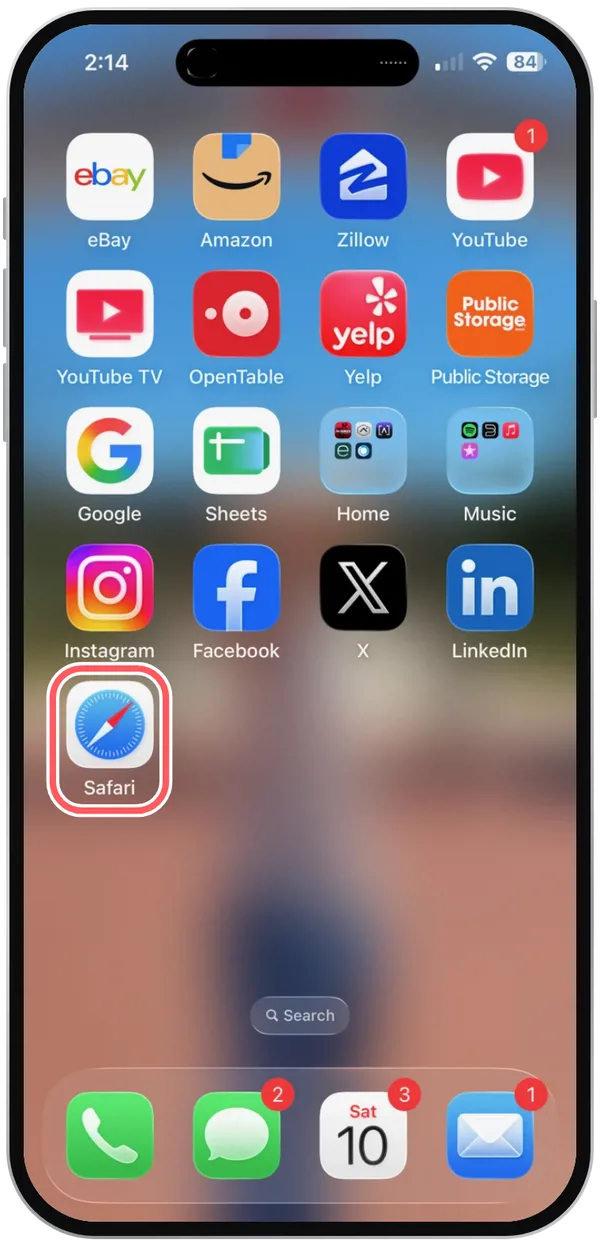
Open Safari.
-
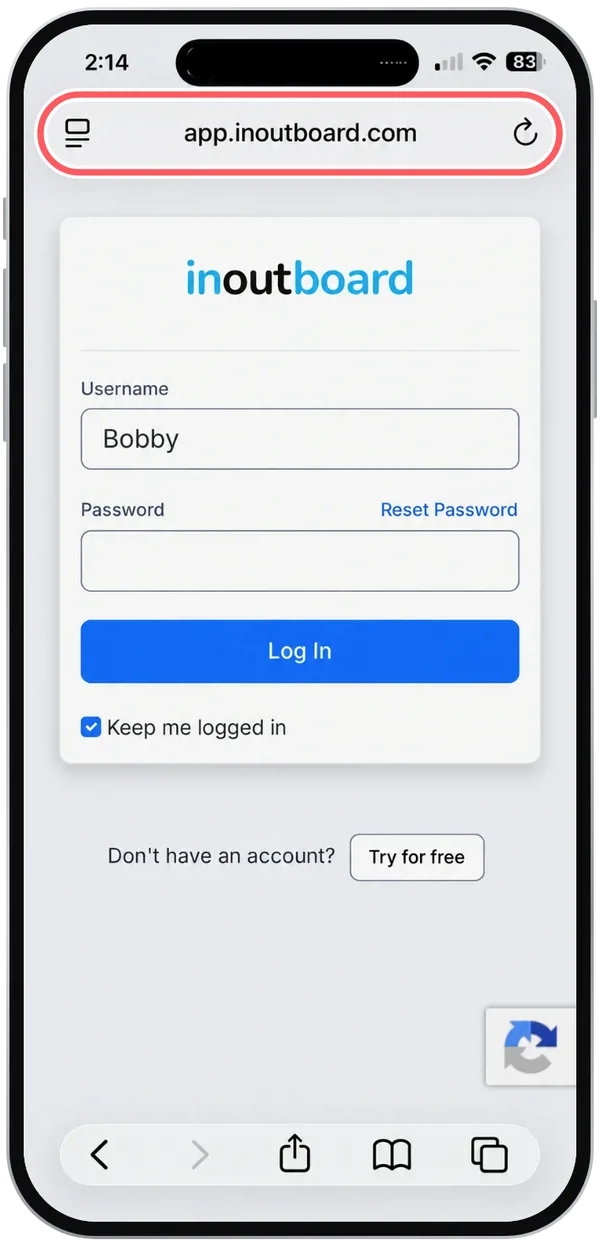
Go to app.inoutboard.com and log in.
-
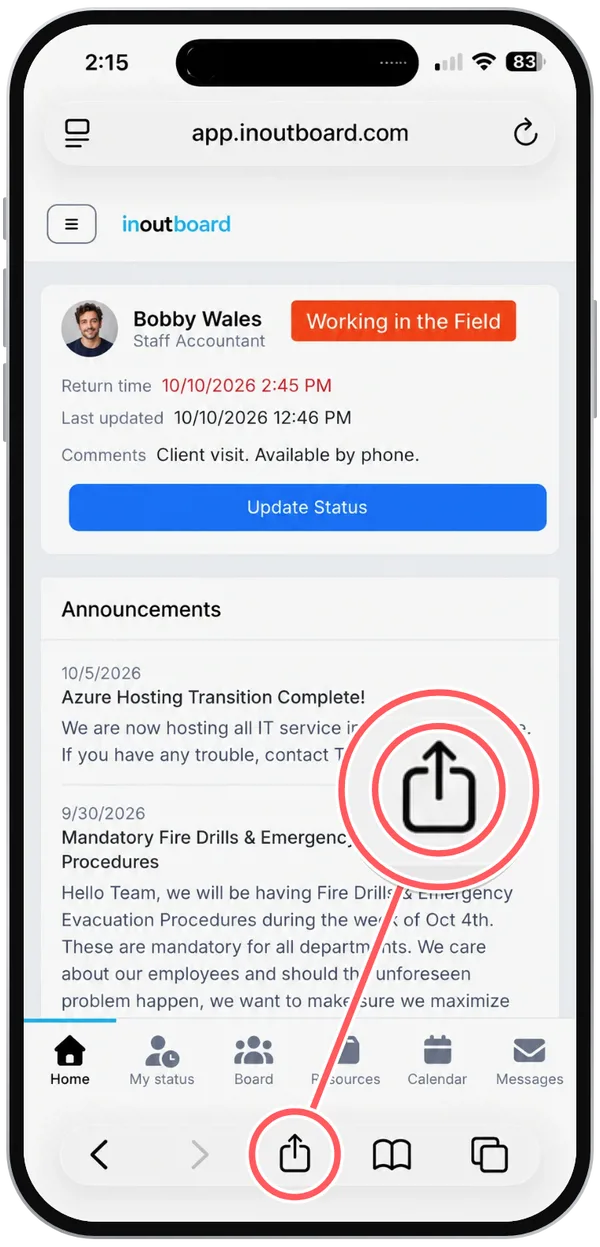
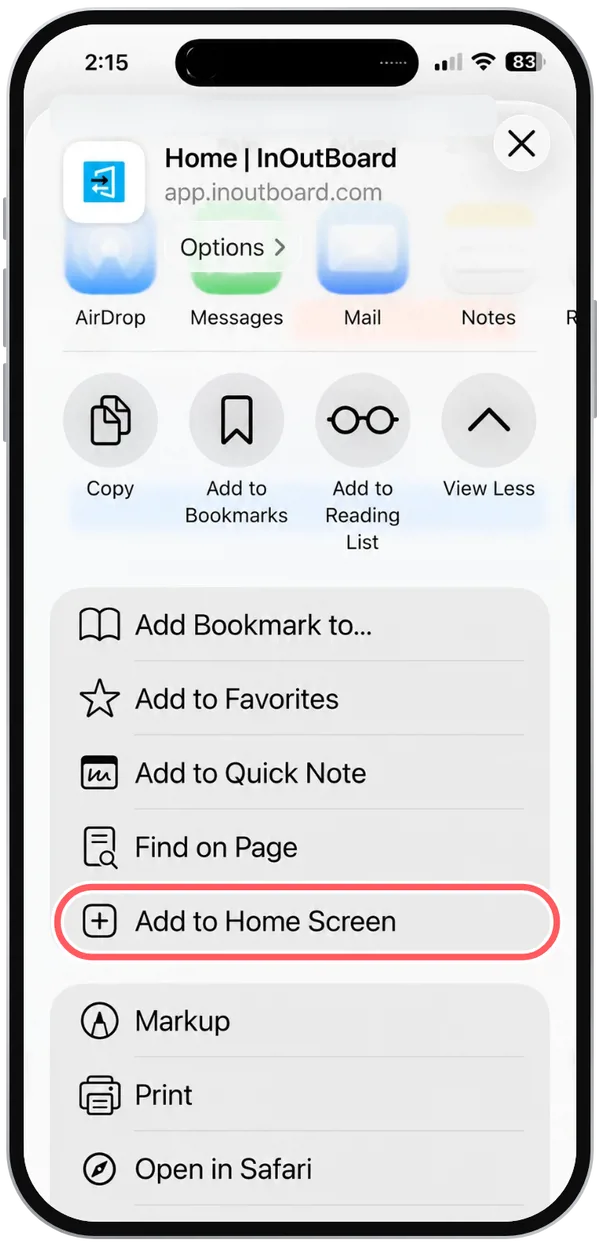
Tap the Share icon—the square with an arrow pointing up—in Safari's toolbar.
-
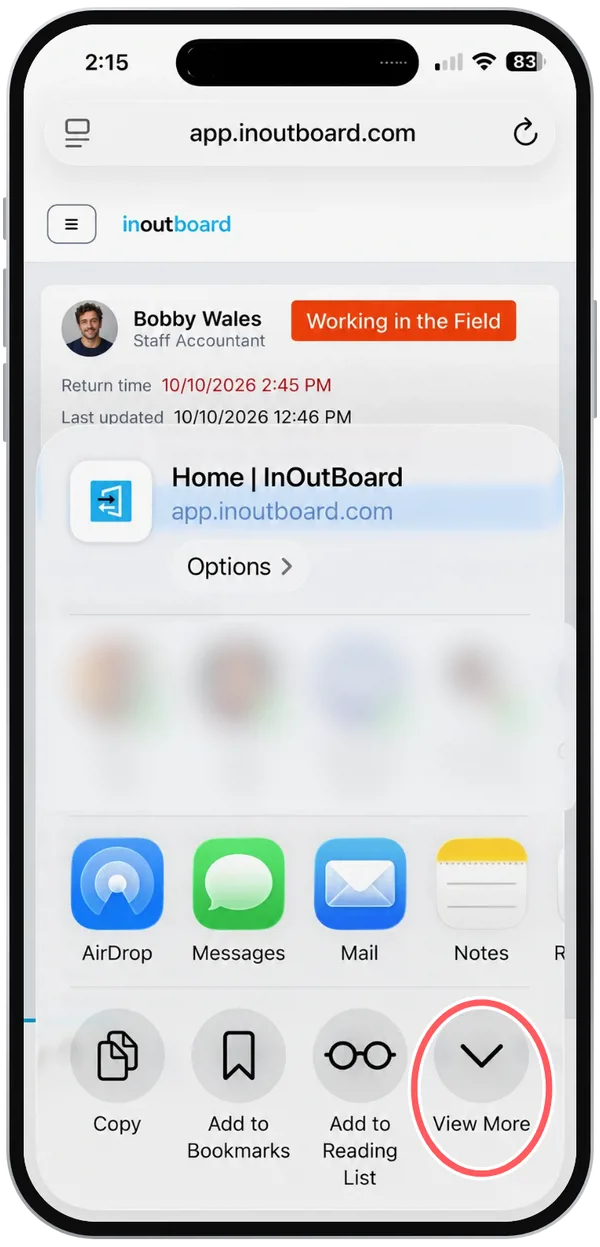
Tap View More. (On some versions of iOS there is no View More; scroll down the list of options instead.)
-
Tap Add to Home Screen. (Not in the list? Tap Edit Actions at the bottom to add it, then open the Share icon again.)
-
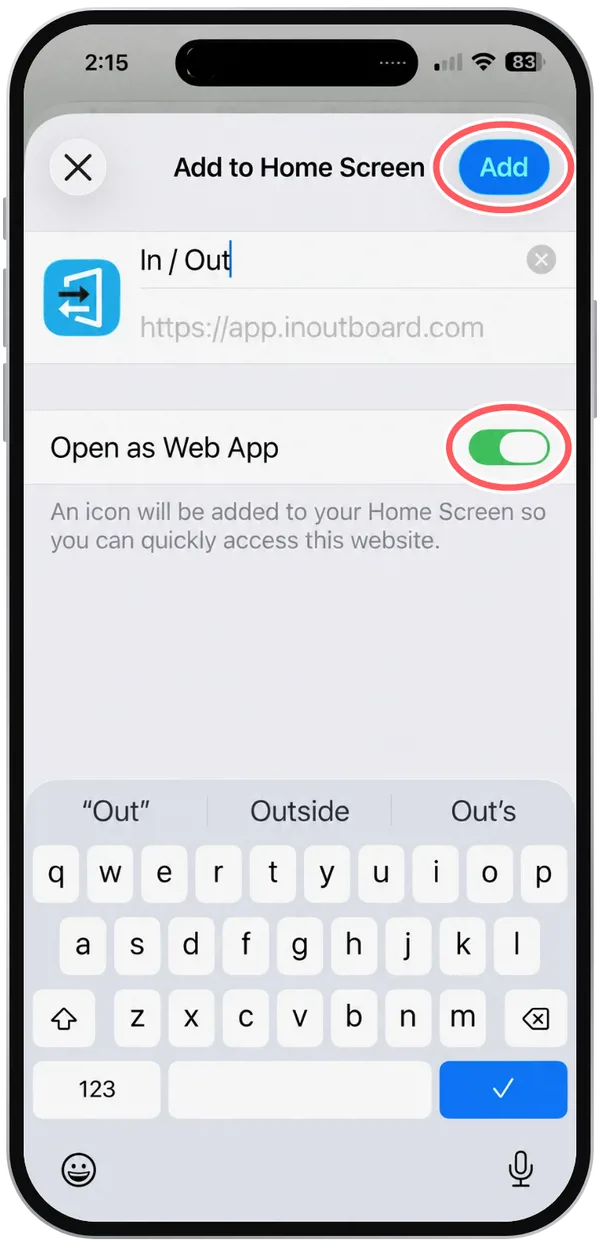
Keep the name In / Out and turn on Open as Web App, if you see it, so InOutBoard opens in its own window. Tap Add.
-
The InOutBoard icon, labeled In / Out, is on your Home Screen. Tap it to open InOutBoard.
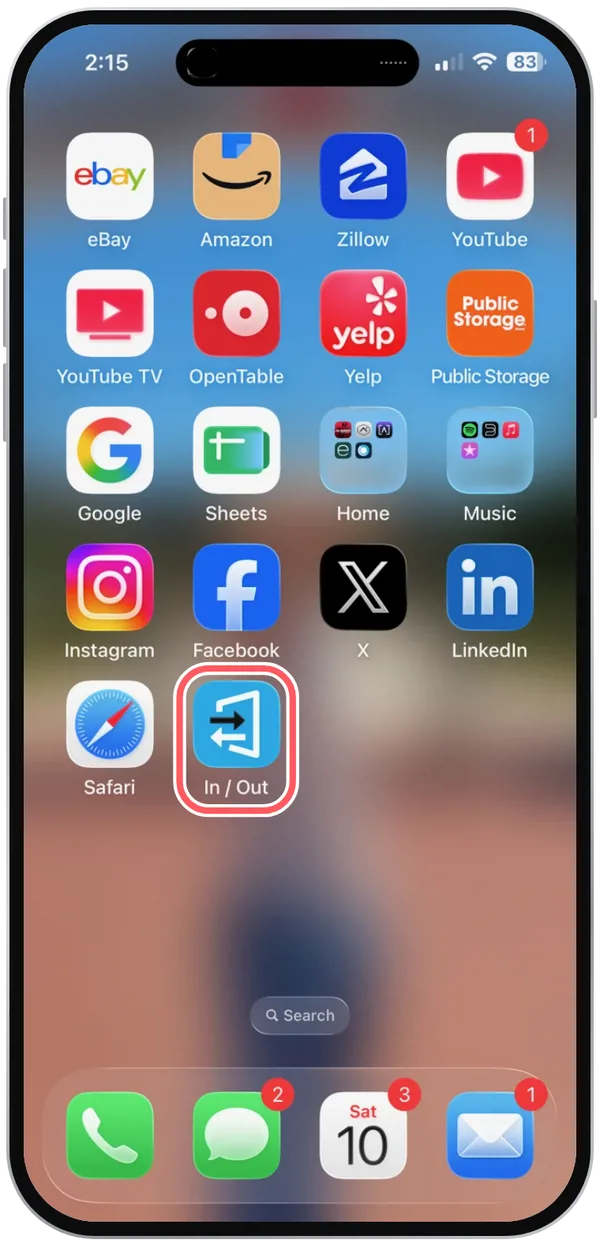
The first time you open InOutBoard from the icon, it may ask you to log in again: an app added with Open as Web App keeps its own sign-in, separate from Safari's.
How do I add InOutBoard to my Android Home Screen?
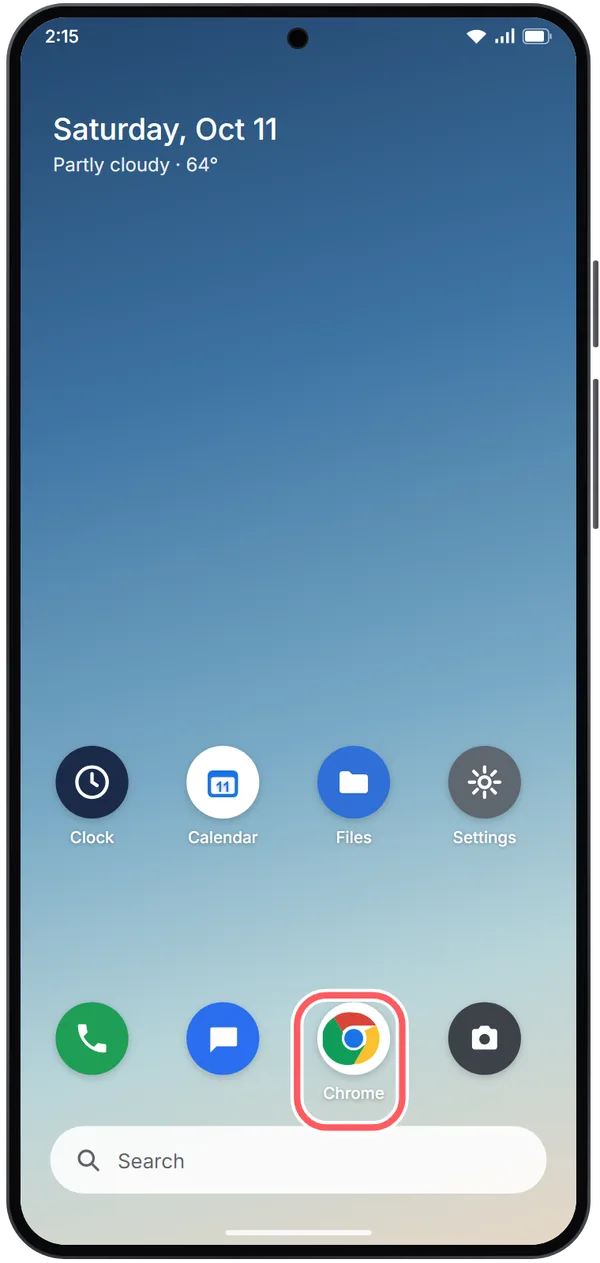
The pictures below are illustrations of Chrome on Android. Your phone's screens may look a little different depending on its make and your version of Chrome.
-
Open Chrome.
-
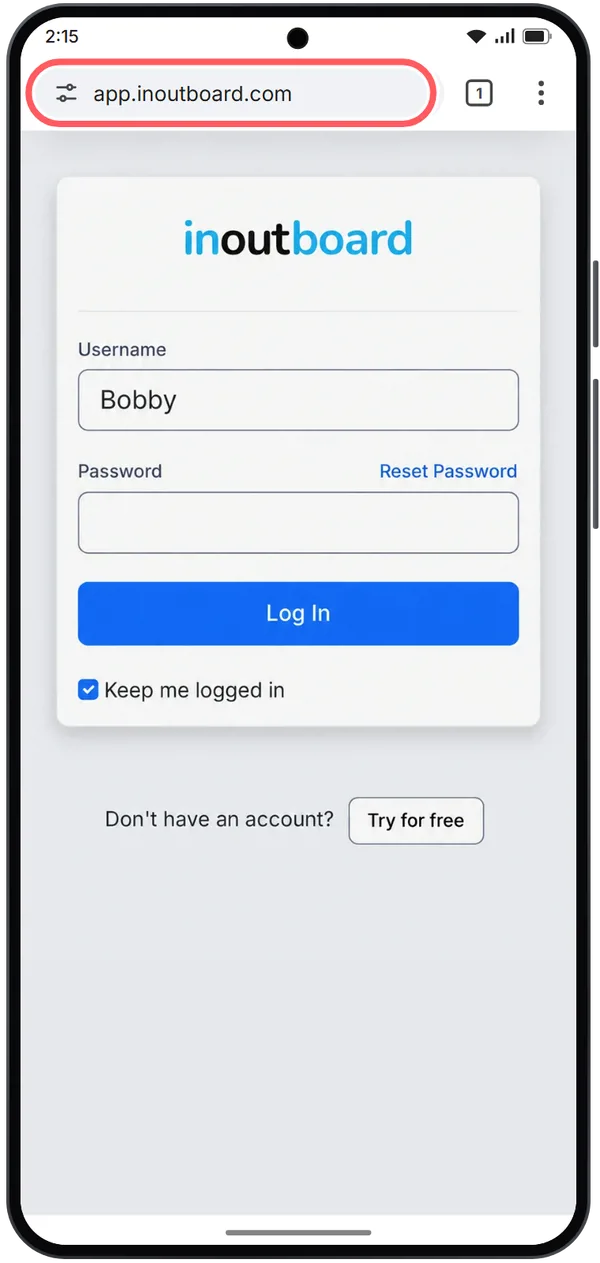
Go to app.inoutboard.com.
-
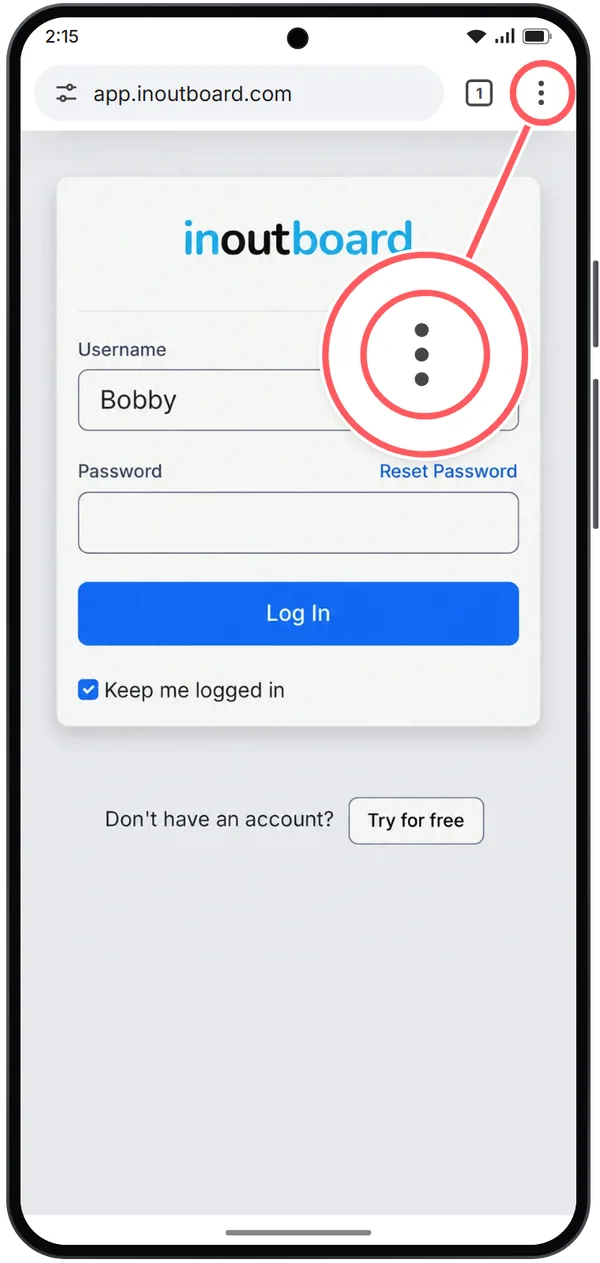
Tap More—the three dots—at the top right.
-
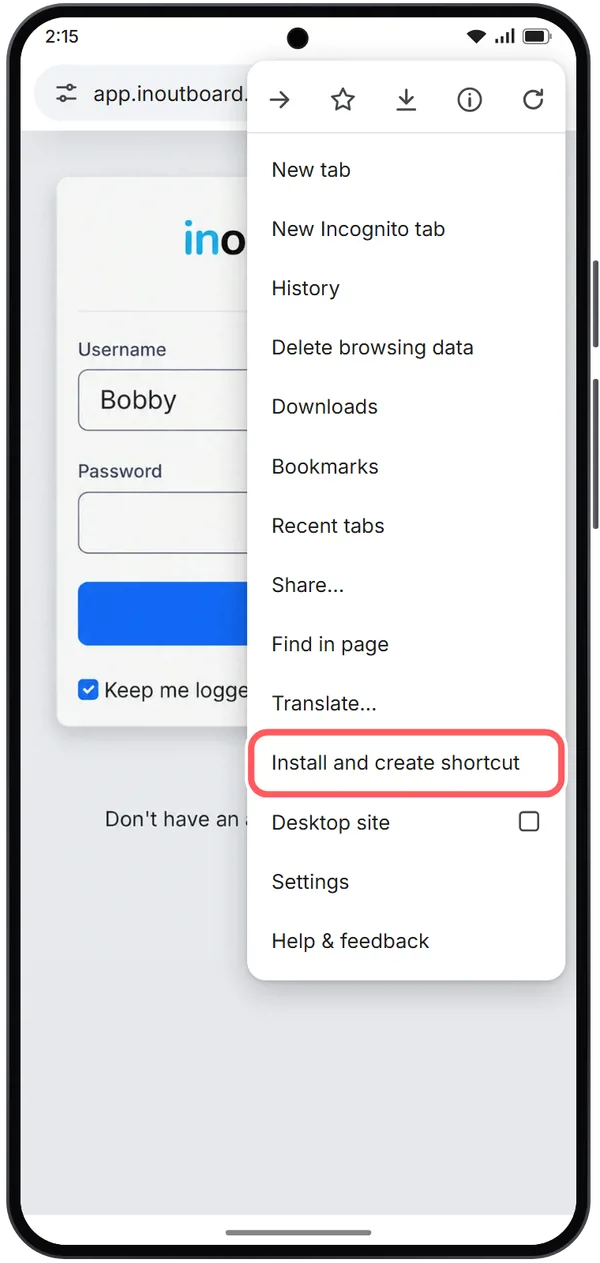
Tap Install and create shortcut.
-
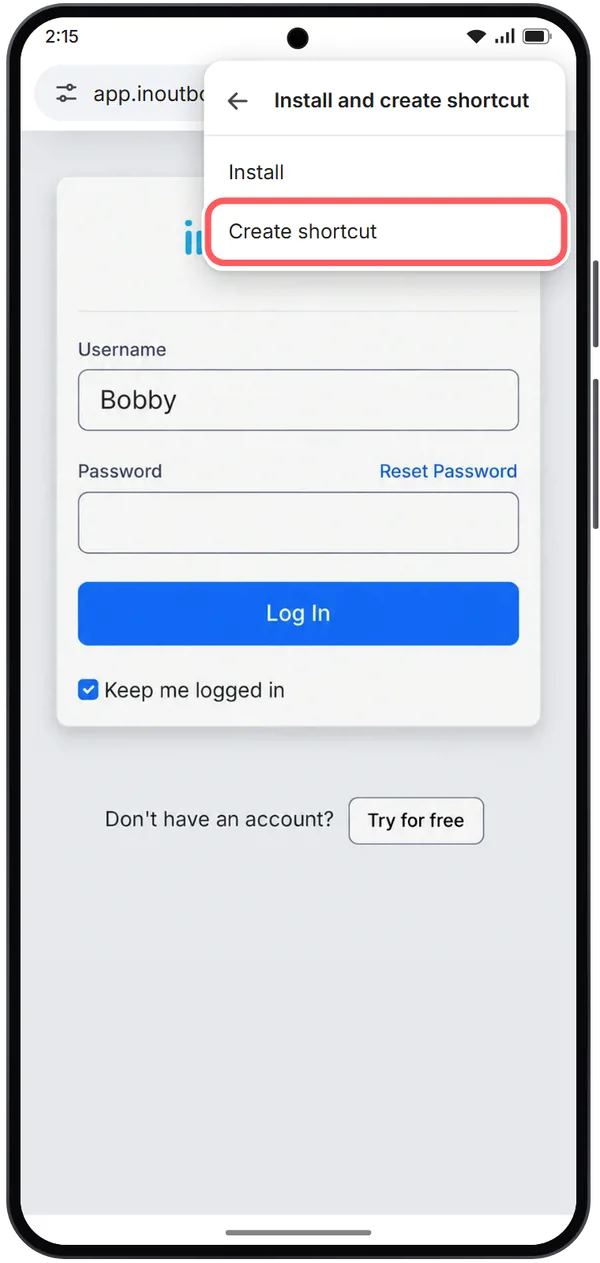
Tap Create shortcut.
-
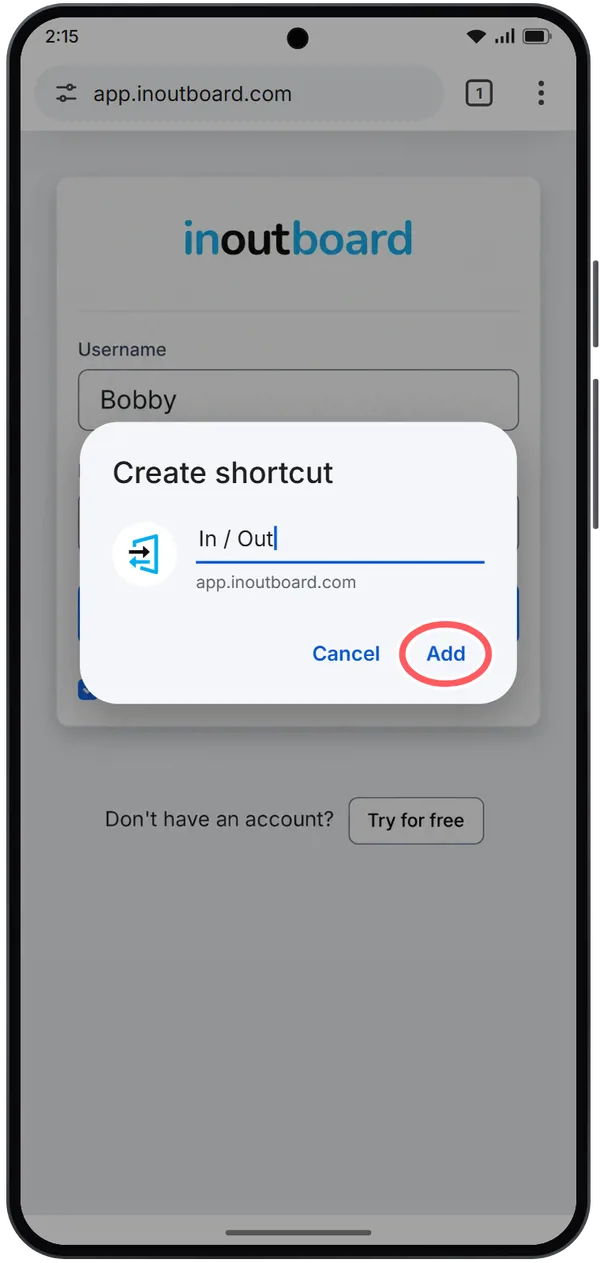
Keep or edit the name In / Out, then tap Add.
-
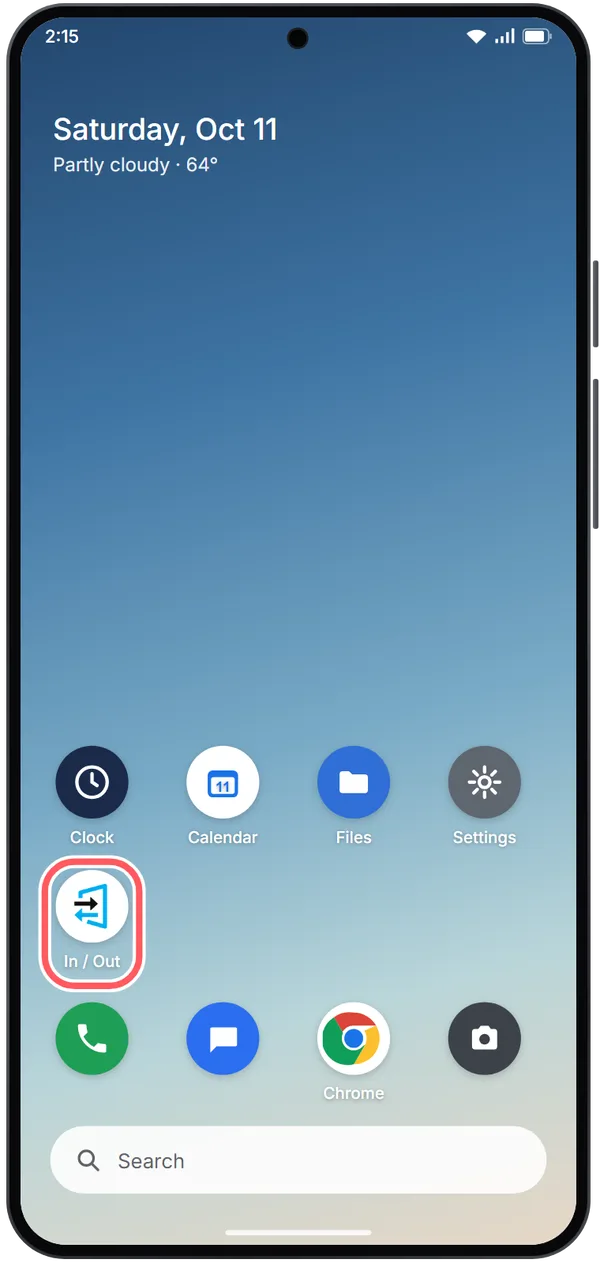
The InOutBoard icon, labeled In / Out, is on your Home Screen. Tap it to open InOutBoard.
To install InOutBoard as a standalone web app instead of a shortcut, the quickest way is the Install InOutBoard Web App button on the sign-in page. From the Chrome menu it is More → Install and create shortcut → Install (older versions of Chrome label it Add to Home screen → Install), then follow the on-screen instructions. The InOutBoard web app covers what changes once it is installed.
Still need help?
Having trouble using InOutBoard on your phone or adding it to your home screen? Contact our support team.
New to InOutBoard?
Try every feature free for 30 days. No credit card required.